Game changing licensing functionality in the latest D365 F&O PQU
How to duplicate a security role in D365 F&O so that a cheaper license covers it. Make the copy, check what was left out and test it with your users.

When you duplicate a security role in Dynamics 365 Finance and Operations (F&O), you can select a license. F&O then copies only what that license fully covers. The option was new when I wrote this post in December 2025. It came with the proactive quality update (PQU) for version 10.0.44 that was the latest one at that time.
The license a user needs follows from the security roles of that user. A role with a few objects that a cheaper license does not cover puts everyone who has it on the more expensive license. Before this option the fix was to take duties and privileges out of the role by hand. This post shows how to make the copy and what to check before a user gets the cheaper license.
Before you start
Follow the steps as a system administrator and check three things first:
- Version and features. Microsoft Learn lists the quality updates of 10.0.43, 10.0.44 and 10.0.45 that contain the option and names no later version. On a current version check first that the Licensing SKU field is in the Duplicate dialog. SKU stands for stock keeping unit and here it means a license. The Licenses usage summary page needs version 10.0.43 or later and two features that you enable in Feature management. They are User security governance and User security governance license usage summary report.
- Environment. Start in a sandbox.
- Compliance. The option does not assign licenses or change license requirements. You remain responsible for licensing your users according to the Product Terms. The Dynamics 365 Licensing Guide gives the Team Members rights in F&O for the own use of a user and not for work on behalf of others, so check with your licensing partner that the work done with the copy fits the license.
Step 1. Find the license a role requires
I use the Expense administrator role as the example. The steps are the same for any other role, your own custom roles included.
-
Go to System administration > Security > Security governance > Licenses usage summary and open the Role licenses tab.
-
Filter the Role name column on the role.
-
Read the upper grid. It has one row for each license. Entitled is the number of objects of the role that the license covers and Not entitled is the number it does not cover. A license covers the whole role only when Not entitled is 0.
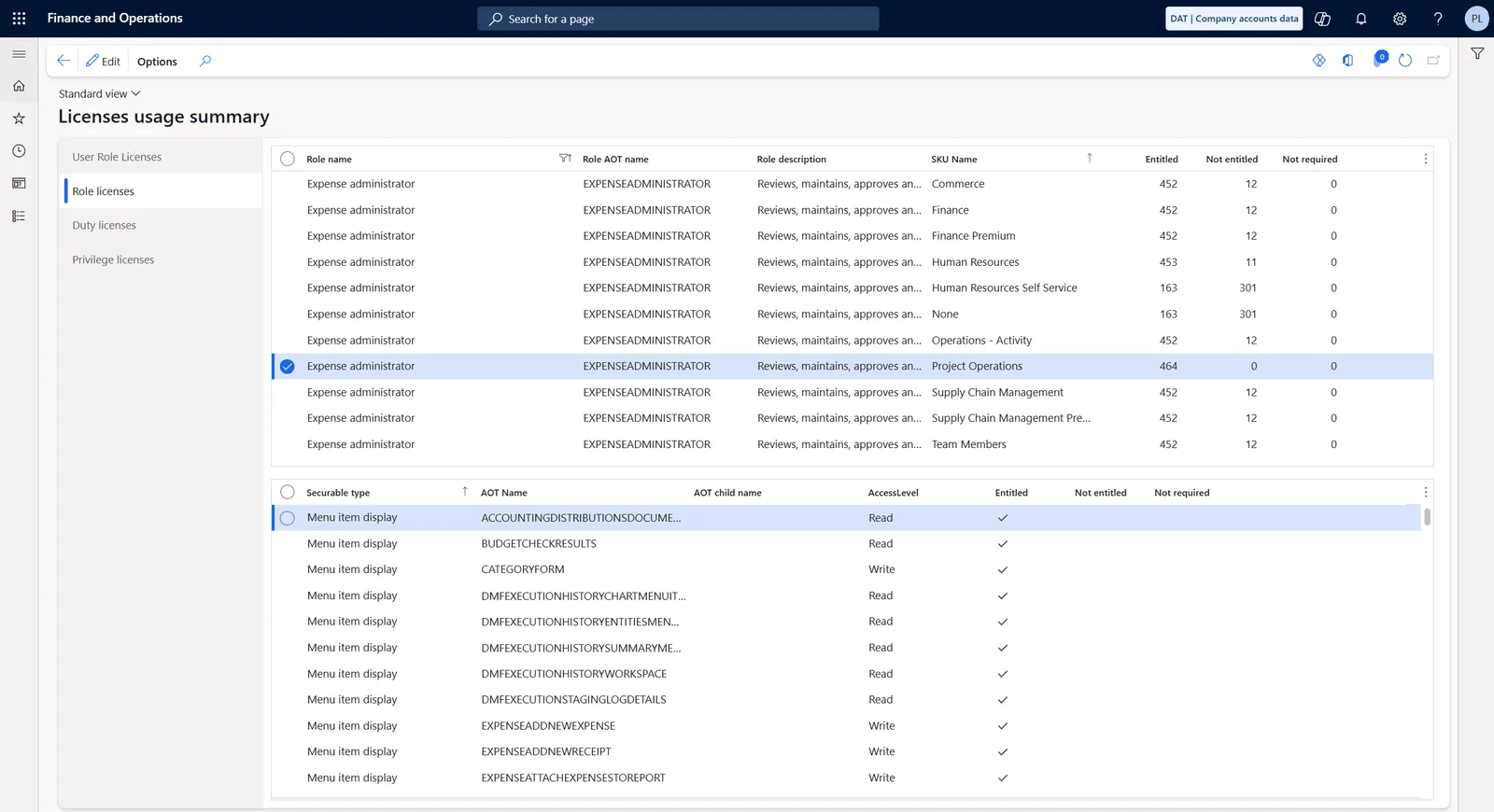
In my example the role has 464 objects and only the Project Operations license covers all of them, so that is the license the role requires. The Team Members license covers 452 and leaves 12 not entitled.
Step 2. Duplicate the role with a cheaper license
-
Go to System administration > Security > Security configuration.
-
On the Roles tab select Expense administrator and then Duplicate.
-
In the dialog enter a name for the copy, for example
Expense administrator Team Member. In the Licensing SKU field select Team Members.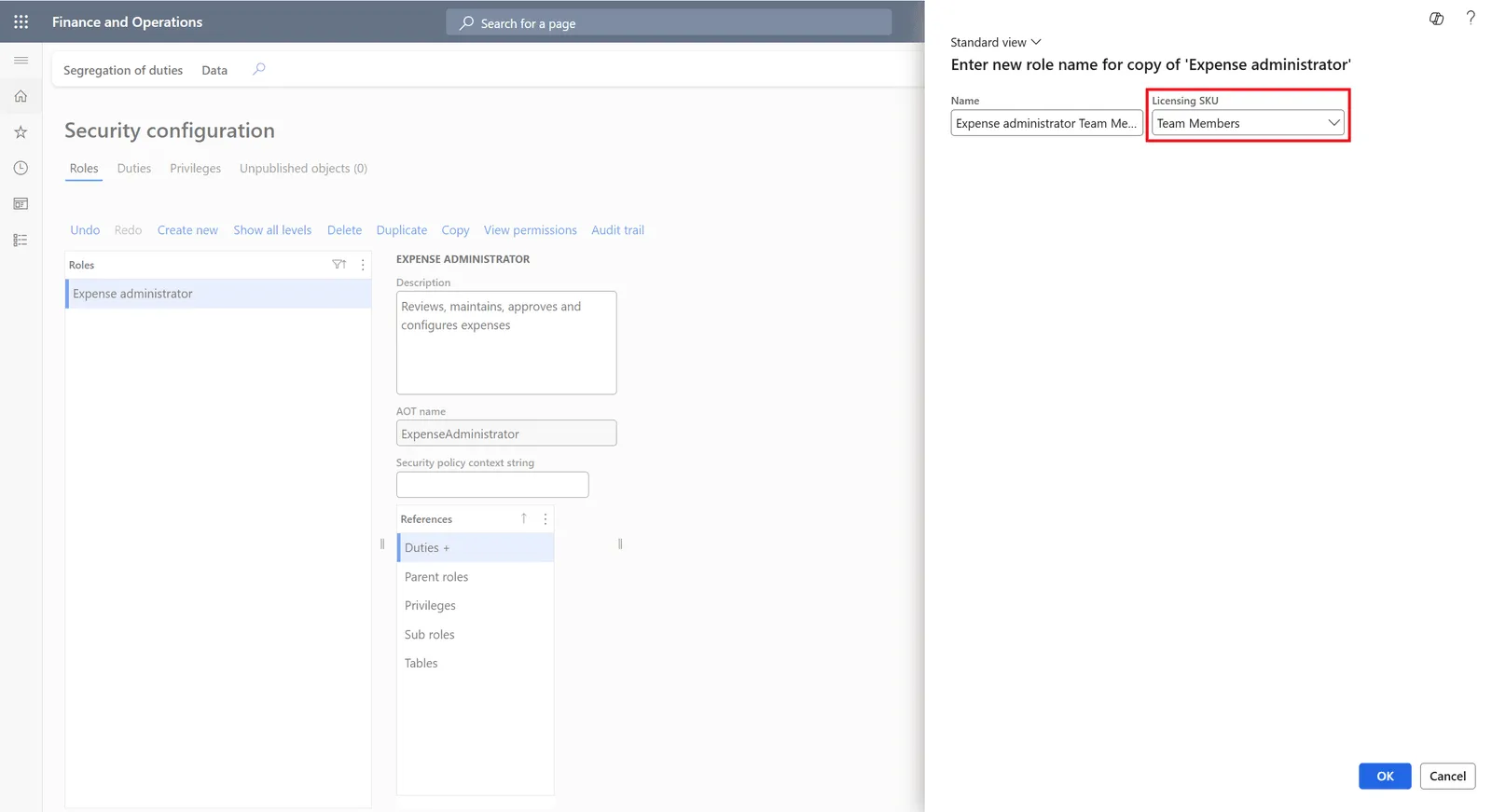
-
Select OK.
The copy has only the references that the Team Members license fully covers. References are the sub roles, duties and privileges of a role. A duty with a single object outside the license is left out as a whole. The original role and the duties themselves are not changed.
Step 3. Check what was left out
-
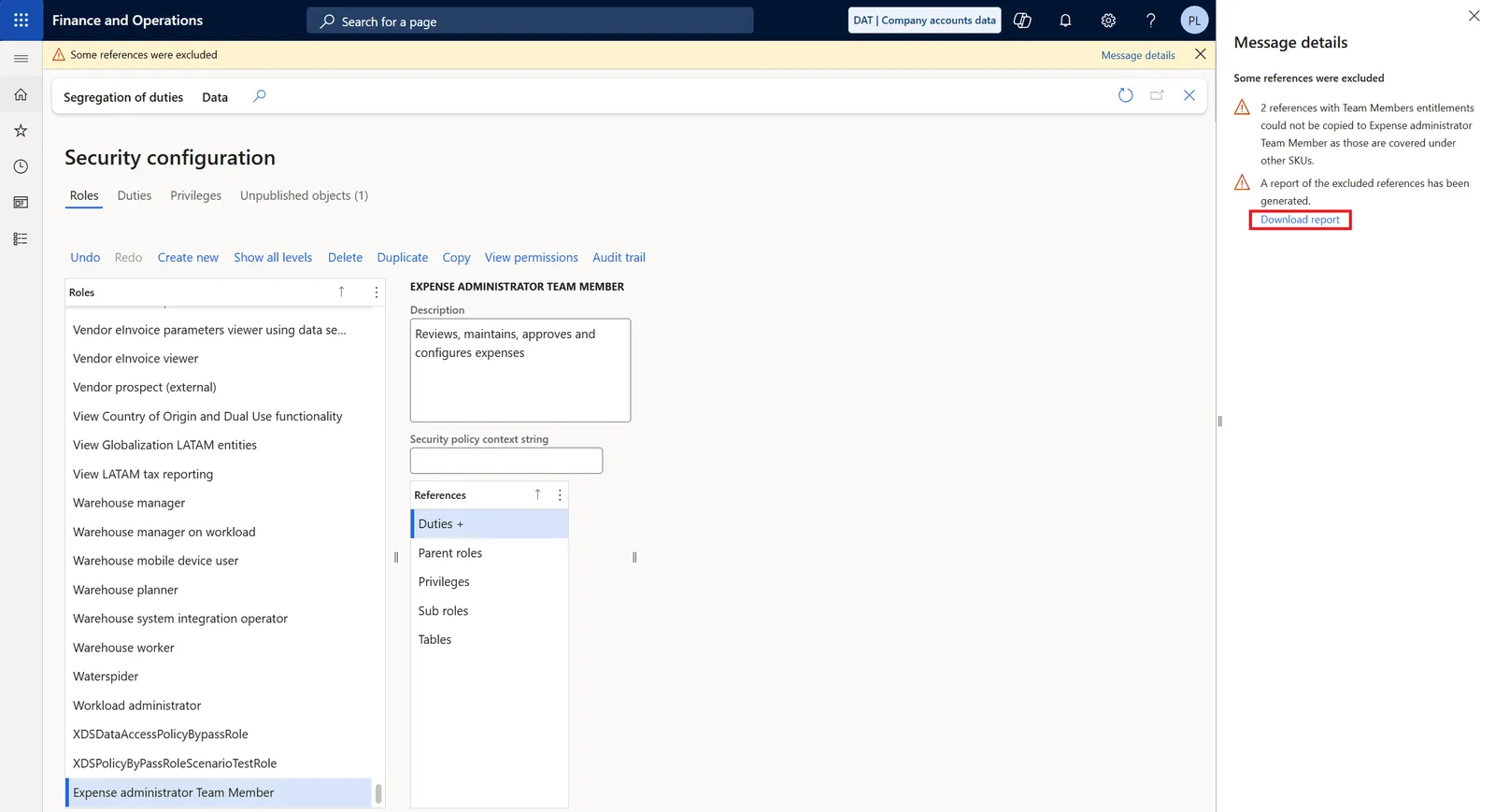
If something was left out, F&O shows the warning Some references were excluded at the top of the page. Select Message details in the warning.
-
In the pane that opens select Download report.
-
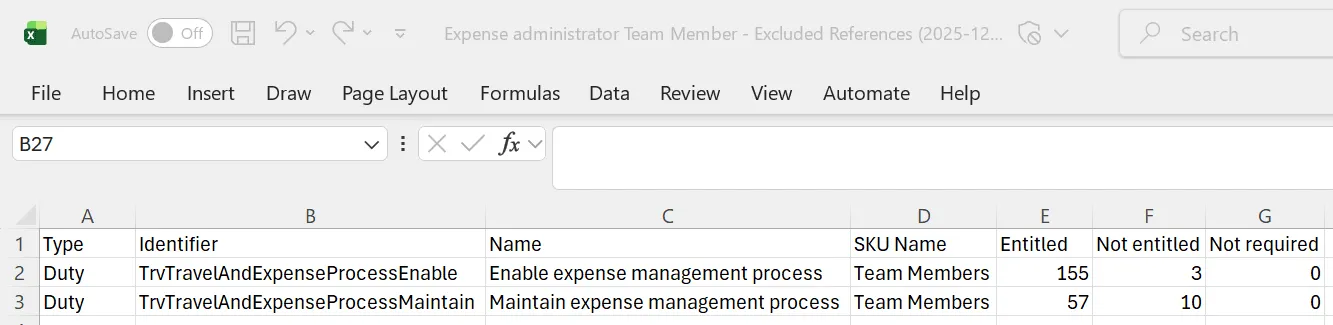
Open the Excel file. It has one row for each reference that was left out, with its own Entitled and Not entitled counts.
-
Decide for each reference whether the users of the new role can work without it. Keep the file with the documentation of the role.
In my example the report has two rows, the duties Enable expense management process and Maintain expense management process. The Team Members license covers 155 objects of the first and 57 of the second. The 3 and 10 objects it does not cover were enough to leave out both duties. The counts are per duty, so they do not add up to the 12 of the role.
Step 4. Publish the role and check its license
-
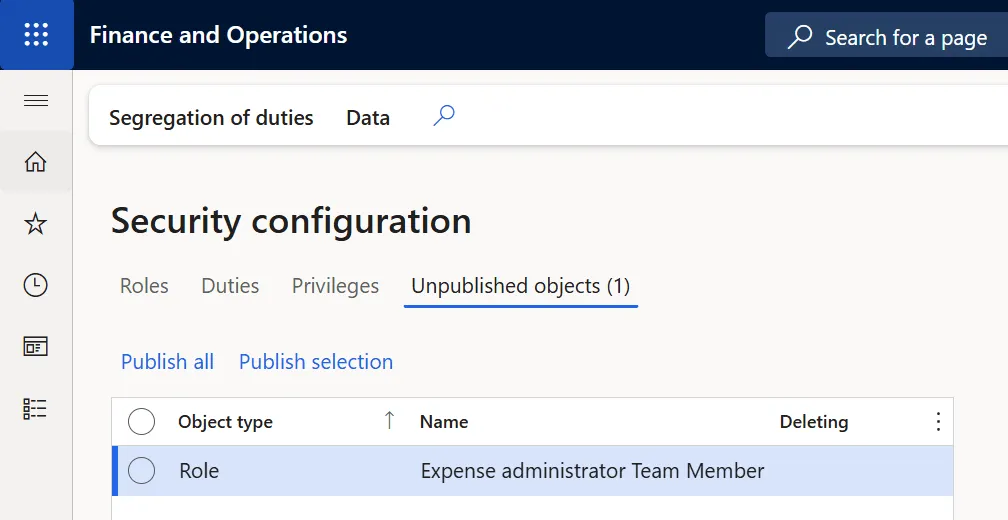
On the Security configuration page open the Unpublished objects tab, select the new role and then Publish selection.
-
Wait until the new role appears on the Licenses usage summary page. That usually takes 2 to 8 hours. You can start the test in step 5 while you wait.
-
Open the Role licenses tab again and filter on the new role.
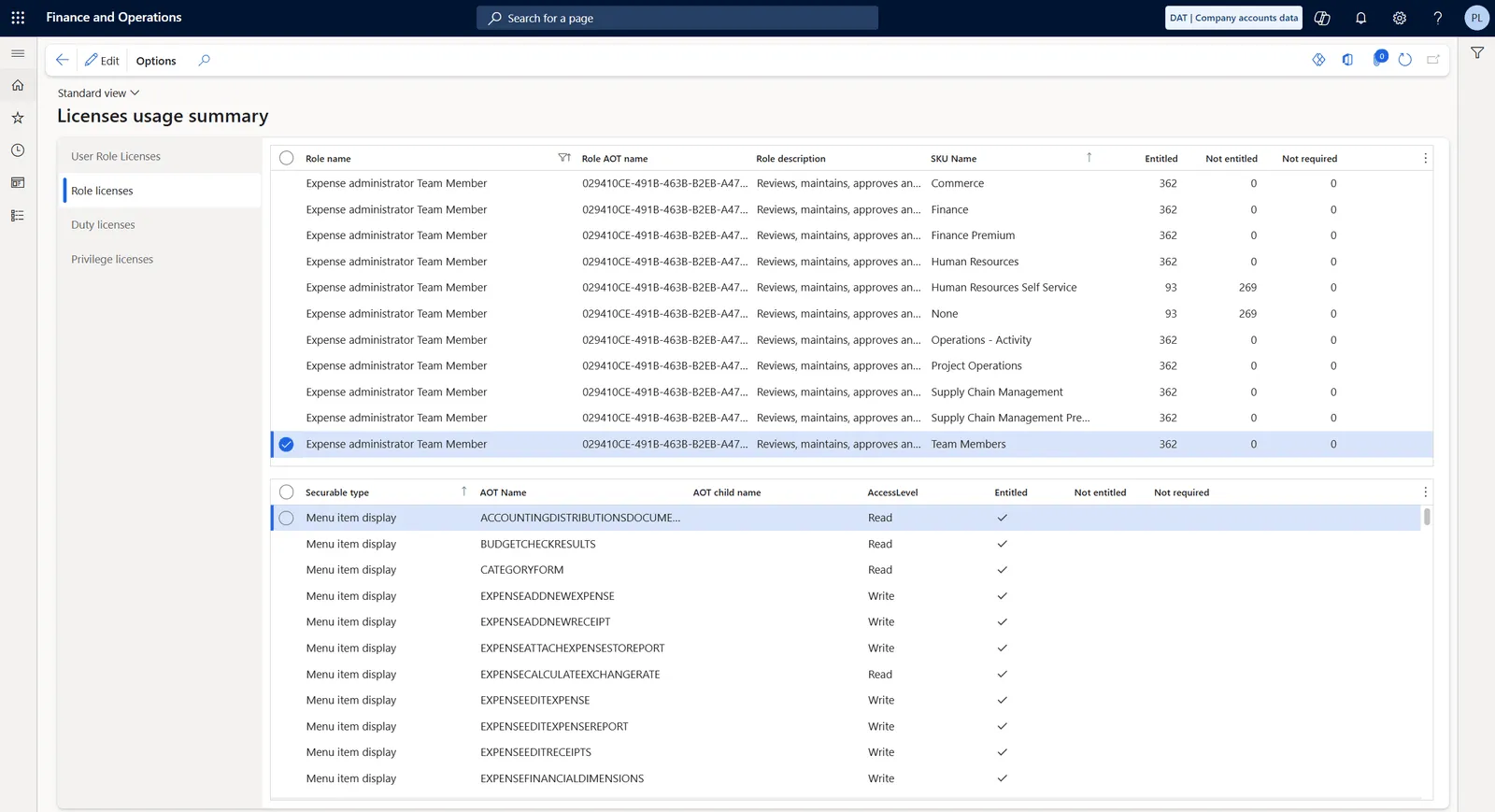
In my example the Team Members row shows 362 entitled and 0 not entitled, so the license now covers the whole role. The copy lost 102 of the 464 objects. Only 12 of them were outside the Team Members license. The other 90 went because two whole duties were left out.
Step 5. Test the role and assign the license
- In the sandbox give the new role to a few users in place of Expense administrator. Ask them to do their usual work and to report what they can no longer open or do.
- Users who need the duties that were left out keep the original role and stay on the Project Operations license.
- Move the role to production with an export and import of the security configuration in Data management. The option does not copy a role to another environment.
- In production give the users the new role in place of Expense administrator. After another 2 to 8 hours open the User Role Licenses tab of the Licenses usage summary page and filter the User ID column on a user. The tab has one row for each role of that user. A row with 1 in the License quantity column is a license the user requires and a row with 0 adds no requirement. One other role can keep a user on the more expensive license. The tab covers one environment. With more than one production environment in the tenant, also check the User License Consumption report in the Power Platform admin center, because the highest requirement across all of them applies.
- Change the license of a user in the Microsoft 365 admin center only when the cheaper license is the only one with 1 in that column. Microsoft recommends assigning a license at least 24 hours before the user needs access, so assign the cheaper license first and remove the old one a day later. Once license validation applies to your tenant, a user without the required license cannot sign in to production.
Final thoughts
The copy is the quick part. After that it is a custom role that you maintain yourself. It reuses the existing duties and the license reporting can change, so check the role on the Licenses usage summary page after every update.
Have you already moved users to a cheaper license this way? Let me know on LinkedIn or through the contact page.
Links
- https://learn.microsoft.com/en-us/dynamics365/fin-ops-core/dev-itpro/sysadmin/security-role-duplicate-with-license-filter
- https://learn.microsoft.com/en-us/dynamics365/fin-ops-core/fin-ops/sysadmin/security-gov-license-usage-summary
- https://aka.ms/FOLicenseValidationFAQ
- https://learn.microsoft.com/en-us/dynamics365/fin-ops-core/dev-itpro/sysadmin/prepare-for-user-validation
- https://learn.microsoft.com/en-us/power-platform/admin/view-license-consumption-finops-apps
- https://learn.microsoft.com/en-us/dynamics365/fin-ops-core/dev-itpro/sysadmin/import-export-customized-security
- https://go.microsoft.com/fwlink/?LinkId=866544&clcid=0x409