Resolving sync error. Specified field '%1' of datasource '%2' does not exist in the database or the configuration key on the field or on Extended Data Type used by the field is off
Database sync in D365 F&O fails with the error that a specified field does not exist in the database. How to find the disabled configuration key and enable it.

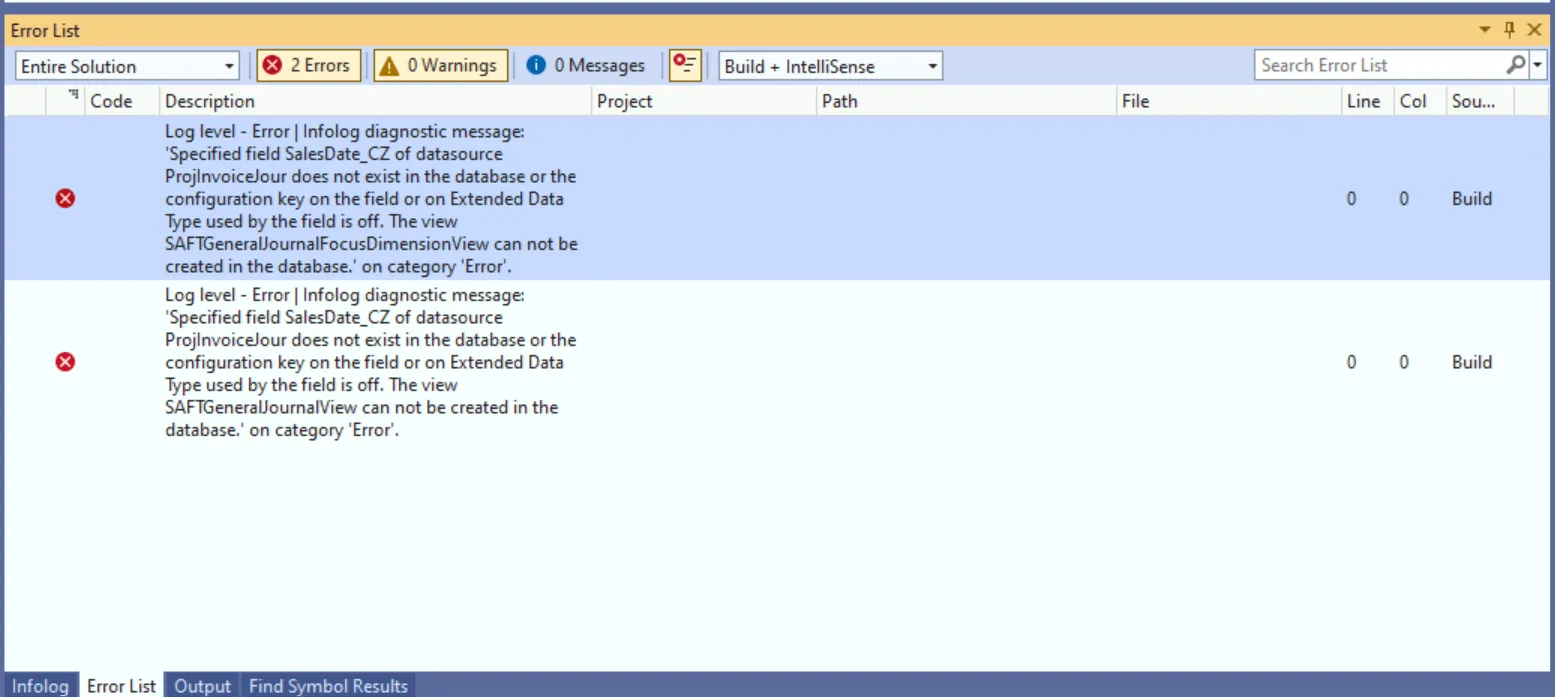
A full database synchronization in Visual Studio failed with the error below. The cause was a disabled configuration key.
Specified field SalesDate_CZ of datasource ProjInvoiceJour does not exist in the database or the configuration key on the field or on Extended Data Type used by the field is off. The view SAFTGeneralJournalFocusDimensionView can not be created in the database.
The Error List window showed the error twice, once for the view SAFTGeneralJournalFocusDimensionView and once for the view SAFTGeneralJournalView. In your case the field, the table and the view can have other names.
The fix was to enable the key in maintenance mode and to synchronize the database again. This post shows how to find the configuration key behind a field in Dynamics 365 Finance and Operations (F&O) and what to check before you enable that key.
What the error means
A configuration key switches a piece of F&O functionality on or off. The message gives two possible causes. Either the table in the database has no column for the field or a configuration key that the field depends on is off. The two views use the field SalesDate_CZ, so the synchronization could not create them while its key was off.
In a sandbox or production environment there is no Error List. When the database synchronization fails there during a package deployment in Lifecycle Services (LCS), download the logs of the failed step and look for the message in the files DBSync.err and DBSync.log.
Find the configuration key
-
Check that the field exists. The datasource in the message is the table, here
ProjInvoiceJour. Open it from Application Explorer in Visual Studio and type the field name in the search box of the designer. The fieldSalesDate_CZis there, so nothing is missing from the metadata.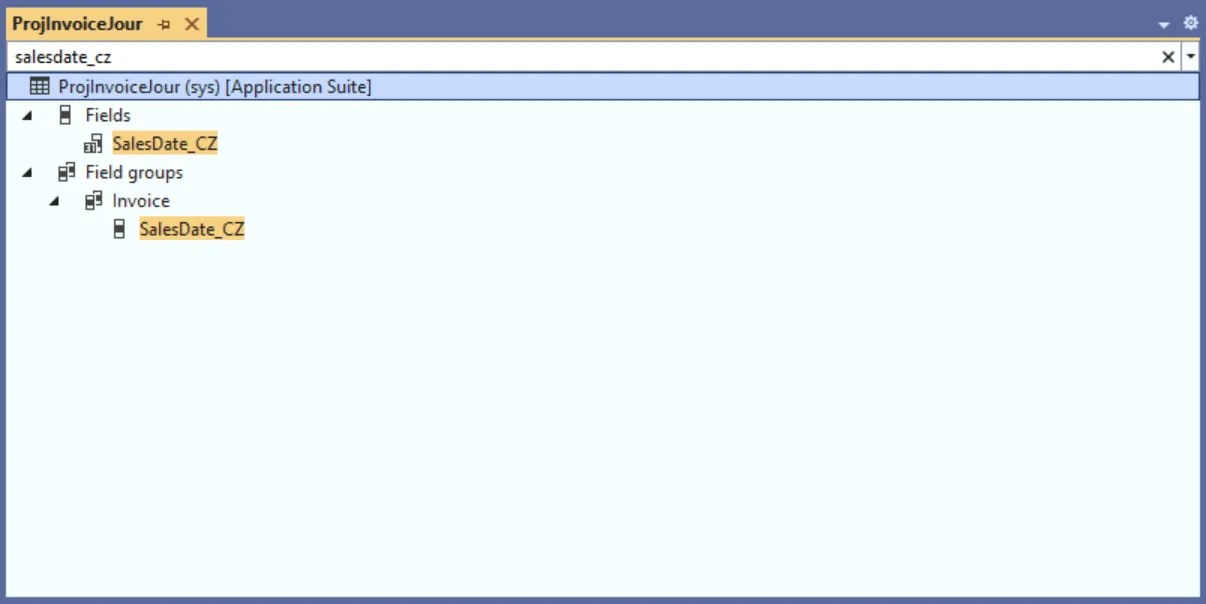
-
Find the key. The message names two places for it, the field and the extended data type that the field uses. Select the field and check its Configuration Key property. The Extended Data Type property of the field shows which type the field uses. Open that type and check the same property there.
SalesDate_CZuses the extended data typeCzSalesDateand the key of that type isTradeDates_W.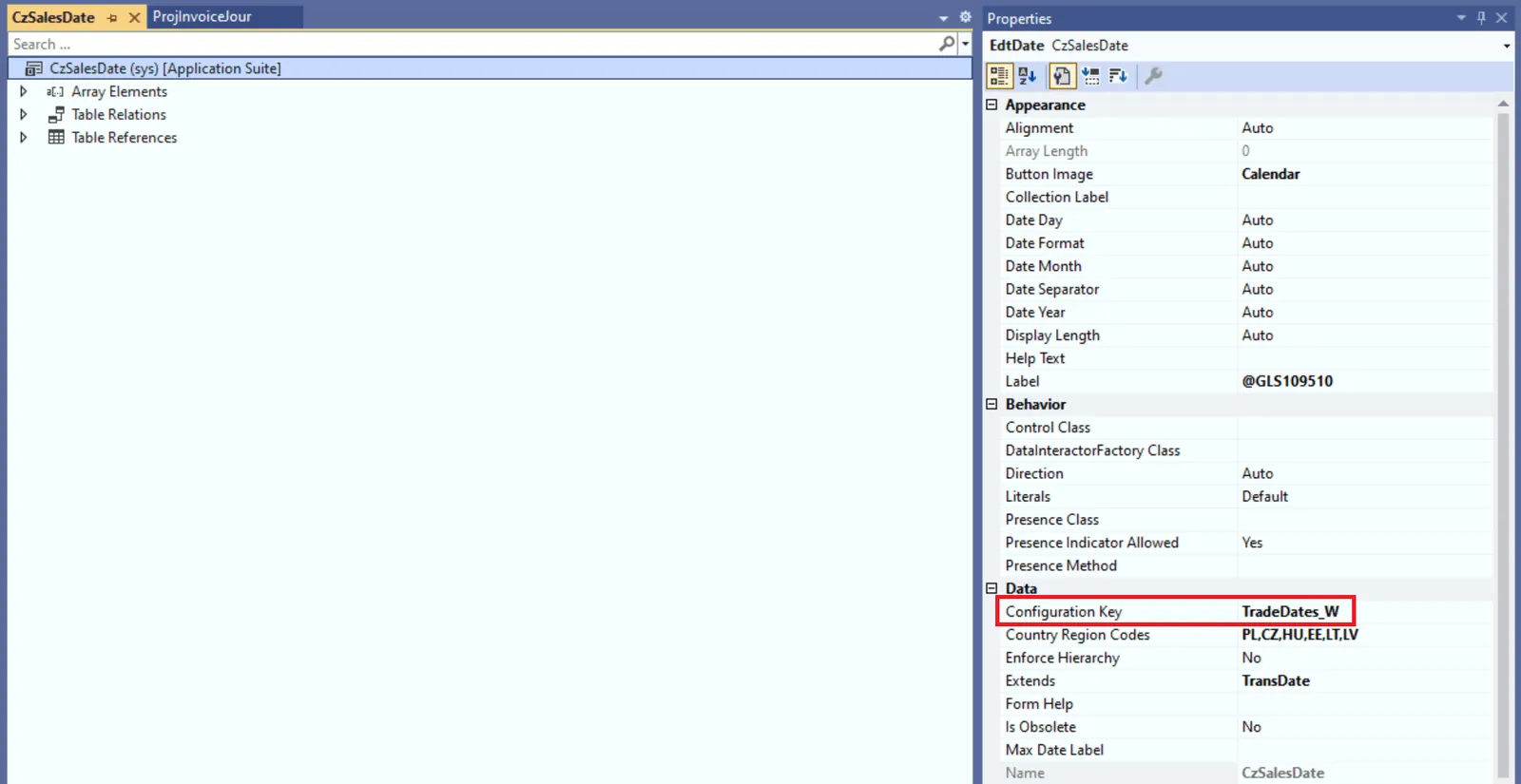
-
Check the key in F&O.
TradeDates_Wis the technical name. The License configuration page shows the label of the key, which is Trade dates. Go to System administration > Setup > License configuration and expand Trade. The Trade dates checkbox was cleared, so the key was disabled.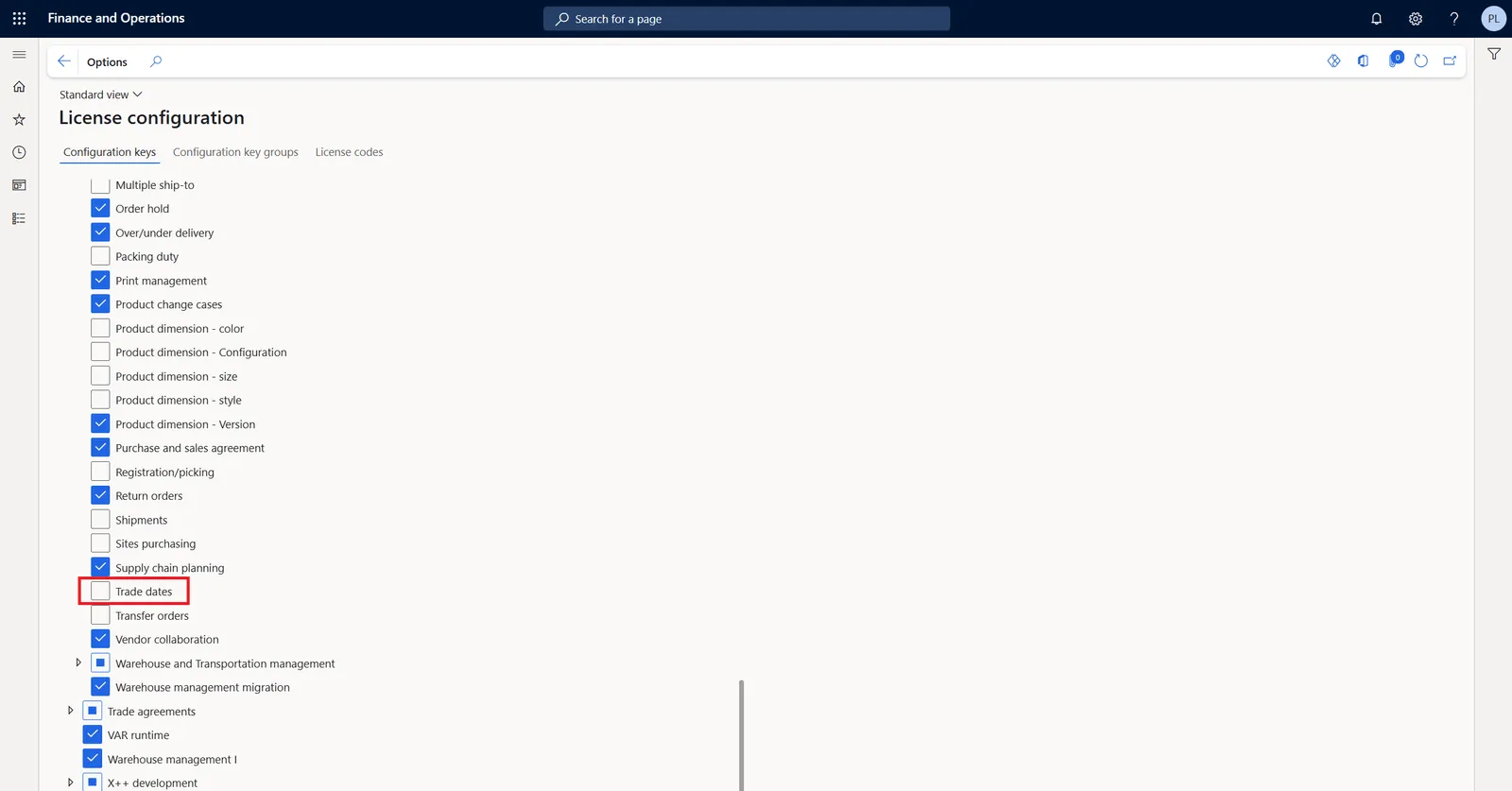
Before you enable the key
If the view or data entity that fails is your own, the fix is in your code. Do not enable a key only to get past the synchronization. Take the field out of your object. If the object is of no use without the field, set its Configuration Key property to the key of the field. The whole object is then off while the key is off, so run the synchronization again to confirm that the error is gone.
A key can be off on purpose. An administrator can disable functionality that the company does not use and trade dates is country-specific. Microsoft’s page on invoice processing in Europe describes trade dates for Poland, Hungary and the Czech Republic, where VAT reporting needs the sales date and the document receipt date.
The page is called License configuration, but the keys that Microsoft provides are not part of the licensing model. They only enable and disable functionality. The key of an ISV solution is different. It is not shown on the Configuration keys tab once the license code of the ISV has expired.
The state of the configuration keys is stored in the F&O database, so it comes along with every copy of that database. If you enable the key in your development environment only, the next copy from an environment where the key is off brings the error back. To keep the key on, enable it in every environment. That means maintenance mode, which is downtime, in each of them. Agree on it with the functional consultants and make the change in a sandbox before production.
Plan the way back before you start. On a development VM you can back up the F&O database in SQL Server Management Studio. For a sandbox or production environment in LCS, Microsoft keeps automated backups, 7 days for a sandbox and 28 days for production. A point-in-time restore is possible there, but in production it means long downtime and the loss of everything entered after that point.
Fix the error
You can edit the License configuration page only while maintenance mode is on.
Step 1. Enable maintenance mode
How you do it depends on the environment. My post on maintenance mode says what to prepare and has the steps for LCS, for the Power Platform admin center and for a development VM.
Step 2. Enable the Trade dates key
Go to System administration > Setup > License configuration, expand Trade and select the Trade dates checkbox.
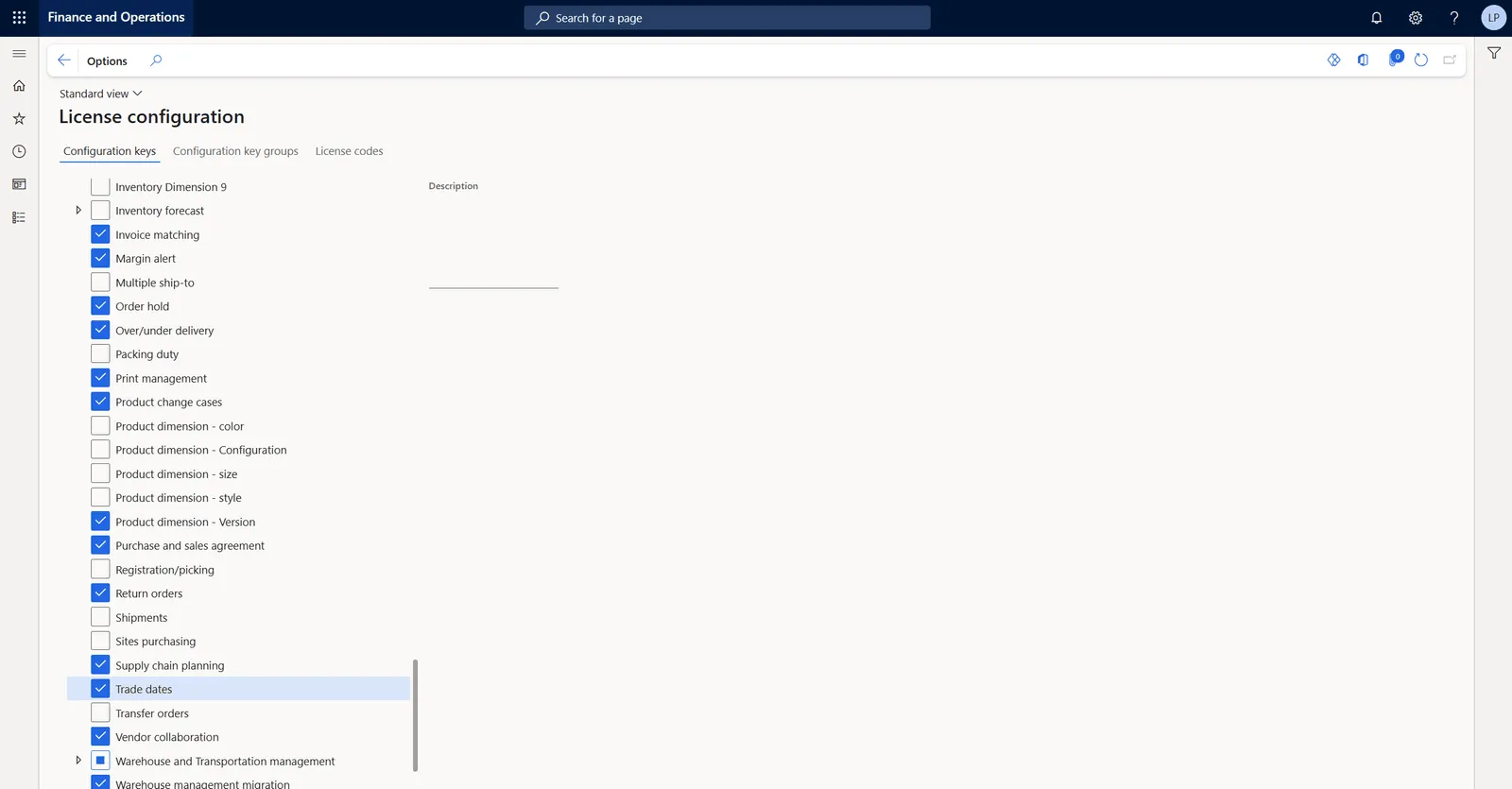
Step 3. Synchronize the database
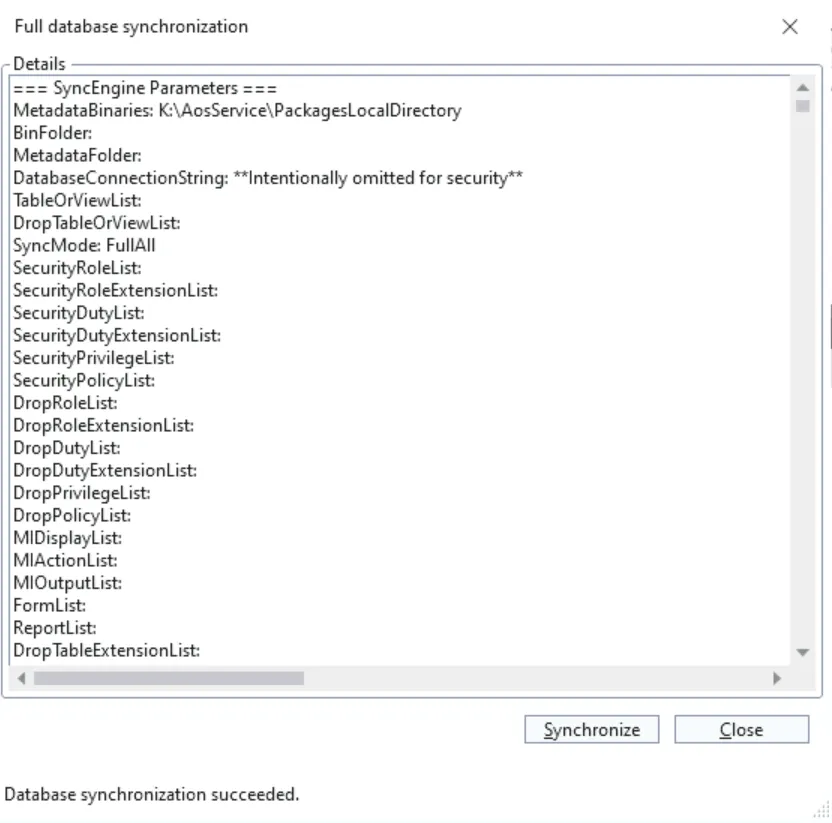
The key is enabled, but the two views are not in the database yet. On a development VM select Extensions > Dynamics 365 > Synchronize database in Visual Studio and then Synchronize. A full synchronization can take a long time. When it finishes, the dialog shows Database synchronization succeeded and the two errors are gone from the Error List.
With a unified developer environment the same command synchronizes the database of that environment. In a sandbox or production environment you do not run a database synchronization yourself. Microsoft states that the database is synchronized automatically after you put the environment in and out of maintenance mode.
Step 4. Disable maintenance mode
Disable maintenance mode in the same place where you enabled it. On a development VM follow step 4 of the maintenance mode post.
Step 5. Refresh the entity list
The entity list has to be refreshed after every change to a configuration key. In the Data management workspace, select Framework parameters > Entity settings > Refresh entity list.
Which configuration key was behind your error? Let me know on LinkedIn or through the contact page.
Links
- https://learn.microsoft.com/en-us/dynamics365/fin-ops-core/dev-itpro/sysadmin/view-isv-license-status
- https://learn.microsoft.com/en-us/dynamics365/fin-ops-core/dev-itpro/deployment/deployable-package-troubleshooting
- https://learn.microsoft.com/en-us/dynamics365/fin-ops-core/dev-itpro/dev-ref/application-explorer-aot-properties
- https://learn.microsoft.com/en-us/dynamics365/finance/localizations/europe/emea-invoice-processing
- https://learn.microsoft.com/en-us/dynamics365/fin-ops-core/dev-itpro/sysadmin/license-codes-configuration-keys-report
- https://learn.microsoft.com/en-us/dynamics365/fin-ops-core/dev-itpro/database/database-refresh
- https://learn.microsoft.com/en-us/dynamics365/fin-ops-core/fin-ops/data-entities/config-key-entities
- https://learn.microsoft.com/en-us/dynamics365/fin-ops-core/dev-itpro/sysadmin/maintenance-mode
- https://learn.microsoft.com/en-us/dynamics365/supply-chain/engineering-change-management/product-engineering-overview
- https://learn.microsoft.com/en-us/dynamics365/fin-ops-core/dev-itpro/dev-tools/build-operations
- https://learn.microsoft.com/en-us/power-platform/developer/unified-experience/finance-operations-innerloop
- https://learn.microsoft.com/en-us/dynamics365/fin-ops-core/dev-itpro/data-entities/data-entities
- https://learn.microsoft.com/en-us/dynamics365/fin-ops-core/dev-itpro/database/database-point-in-time-restore