How to enable maintenance mode in Microsoft Dynamics 365 F&O
How to enable and disable maintenance mode in D365 F&O. What to prepare and the steps in LCS, in the Power Platform admin center and on a development VM.

Maintenance mode is a system-wide setting in Dynamics 365 Finance and Operations (F&O). You need it to change configuration keys under System administration > Setup > License configuration and to activate financial dimensions. It is off by default.
While maintenance mode is on, only system administrators and users with the Maintenance mode user role can sign in. This post shows how to enable and disable it in Lifecycle Services (LCS), in the Power Platform admin center and on a development VM.
How it works
Maintenance mode is a flag in AXDB, the F&O database. It is the row in the table SQLSYSTEMVARIABLES where PARM is CONFIGURATIONMODE. A change takes effect only after the Application Object Server (AOS) has been restarted.
On a development VM you change the value and restart the AOS yourself. In LCS and in the Power Platform admin center you start an operation and restart nothing yourself.
Before you turn it on
Do three things first:
- Plan ahead. Maintenance mode is downtime for the users. Schedule the change outside working hours and warn the users and the owners of integrations in advance.
- Pause the data maintenance jobs. Microsoft warns that these jobs can block tables while the schema changes and cause timeouts or failures. Go to System administration > Setup > Process automations, open the Background processes tab and set a sleep period on Data maintenance job to find opportunities and on Data maintenance job to run fixes. Then go to System administration > Inquiries > Batch jobs and cancel any data maintenance job that is still running. Remove the sleep period after the change.
- Be extra careful in production. Make the same change in a sandbox first.
Enable or disable maintenance mode in LCS
These steps are for a sandbox or production environment that is managed in LCS.
-
Open the environment details page in LCS.
-
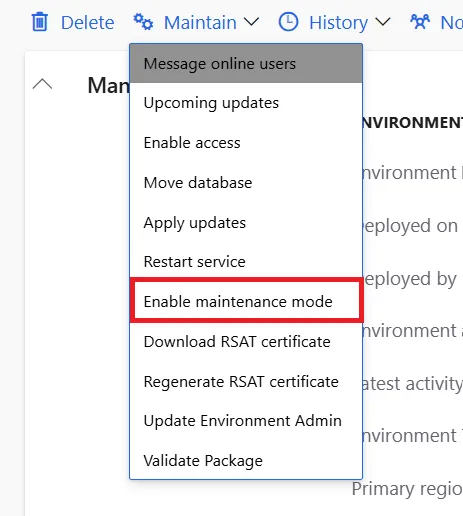
Open the Maintain menu and select Enable maintenance mode.
-
In the pane that opens, switch on Turn maintenance mode on and select Confirm. LCS starts a servicing operation and the environment state changes from Deployed to Servicing.
-
Wait until the state is In Maintenance. Then sign in to F&O as a system administrator and make your changes.
-
Open the Maintain menu again and select Disable maintenance mode. After a second servicing operation the state is Deployed again and all users can sign in.
Allow time for both operations in the downtime you planned. If one of them fails, LCS offers Resume, Rollback and Abort and lets you download the logs.
You do not run a database synchronization yourself in a sandbox or production environment. Microsoft states that the database is synchronized automatically after you put the environment in and out of maintenance mode.
Enable or disable maintenance mode in the Power Platform admin center
The environments of new F&O customers have been managed in the Power Platform admin center since 16 February 2026, when Microsoft stopped new implementation projects in LCS. A self-service migration in public preview moves existing environments there.
In the admin center maintenance mode is called Administration mode and you can set it for a sandbox or production environment. Microsoft states that it has the same effect as maintenance mode in LCS. If the environment is still managed in LCS, use the LCS steps instead.
- Open the Power Platform admin center, select Manage and then Environments.
- Select the environment and then Edit in the Details section.
- Set Administration mode to Enabled and select Save.
- Wait until the service has restarted and the environment is ready. F&O is now in maintenance mode.
- When your changes are done, edit the details again, disable Administration mode and save.
Administration mode applies to the whole Power Platform environment, so in Dataverse only users with the System Administrator or System Customizer role can sign in while it is on. The Background operations switch in the same pane is optional and concerns only asynchronous operations in Dataverse such as workflows.
Enable or disable maintenance mode on a development VM
These steps are for a cloud-hosted VM. For the downloadable VHD, the image behind my personal dev environment on Azure, Microsoft documents a command in place of the SQL update. It is Microsoft.Dynamics.AX.Deployment.Setup.exe with --setupmode maintenancemode and the full command is on the maintenance mode page under Links. A unified developer environment has no VM to sign in to. Use Administration mode from the previous section for it.
Step 1. Check the current state
Connect to the VM with Remote Desktop. My guide to cloud-hosted dev environments shows where LCS lists the Remote Desktop account. Open SQL Server Management Studio, sign in as axdbadmin with the password from LCS and run this query.
USE AXDB;
SELECT * FROM dbo.SQLSYSTEMVARIABLES
WHERE PARM = 'CONFIGURATIONMODE';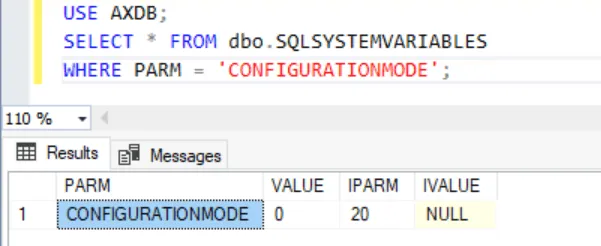
The VALUE column shows 0 when maintenance mode is off and 1 when it is on.
Step 2. Enable maintenance mode
Set the value to 1.
USE AXDB;
UPDATE dbo.SQLSYSTEMVARIABLES
SET VALUE = 1
WHERE PARM = 'CONFIGURATIONMODE';
Then restart the World Wide Web Publishing Service or run this command in PowerShell as administrator.
iisresetStep 3. Make your changes
Sign in to F&O as a system administrator and make your changes. Then run a full database synchronization in Visual Studio. Select Extensions > Dynamics 365 > Synchronize database and then Synchronize. My post about a sync error caused by a disabled configuration key shows the key change and the synchronization with screenshots.
Step 4. Disable maintenance mode
Set the value back to 0.
USE AXDB;
UPDATE dbo.SQLSYSTEMVARIABLES
SET VALUE = 0
WHERE PARM = 'CONFIGURATIONMODE';
Restart the service as in step 2. All users can then sign in again.
Final thoughts
- Do not leave it on. While maintenance mode is on, only one interactive AOS and one batch AOS are available. Disable it as soon as your changes are done.
- Test after the change. Once maintenance mode is off, check the configuration keys you changed. Then check that users can sign in and that forms, reports and batch jobs work.
Have you had to turn on maintenance mode in production? Let me know on LinkedIn or through the contact page.
Links
- https://learn.microsoft.com/en-us/dynamics365/fin-ops-core/dev-itpro/sysadmin/maintenance-mode
- https://learn.microsoft.com/en-us/dynamics365/fin-ops-core/dev-itpro/deployment/maintenanceoperationsguide-newinfrastructure
- https://learn.microsoft.com/en-us/power-platform/admin/admin-mode
- https://learn.microsoft.com/en-us/dynamics365/fin-ops-core/dev-itpro/lifecycle-services/lcs-project-creation-freeze
- https://learn.microsoft.com/en-us/dynamics365/fin-ops-core/dev-itpro/lifecycle-services/migrate-lifecycle-services-environments-power-platform-admin-center
- https://learn.microsoft.com/en-us/power-platform/admin/unified-experience/finance-operations-apps-overview
- https://learn.microsoft.com/en-us/dynamics365/fin-ops-core/dev-itpro/sysadmin/datamaintenanceportal
- https://learn.microsoft.com/en-us/dynamics365/finance/general-ledger/tasks/define-financial-dimensions
- https://learn.microsoft.com/en-us/dynamics365/supply-chain/engineering-change-management/product-engineering-overview
- https://learn.microsoft.com/en-us/dynamics365/fin-ops-core/dev-itpro/dev-tools/access-instances