Batch job printing from F&O to SharePoint doesn't work. The remote server returned an error: (401) Unauthorized
Batch printing from F&O to SharePoint can fail with 401 Unauthorized from version 10.0.42. What Microsoft changed and how one PowerShell script fixes it.

A batch job that prints a document to SharePoint fails with this error.
The remote server returned an error: (401) Unauthorized
The reason is a change in how Dynamics 365 Finance and Operations (F&O) connects to SharePoint. F&O used to rely on a high-trust connection managed by Microsoft. With it the application could impersonate any user in your tenant. Microsoft removed that connection and set 28 February 2025 as the date when it would stop working.
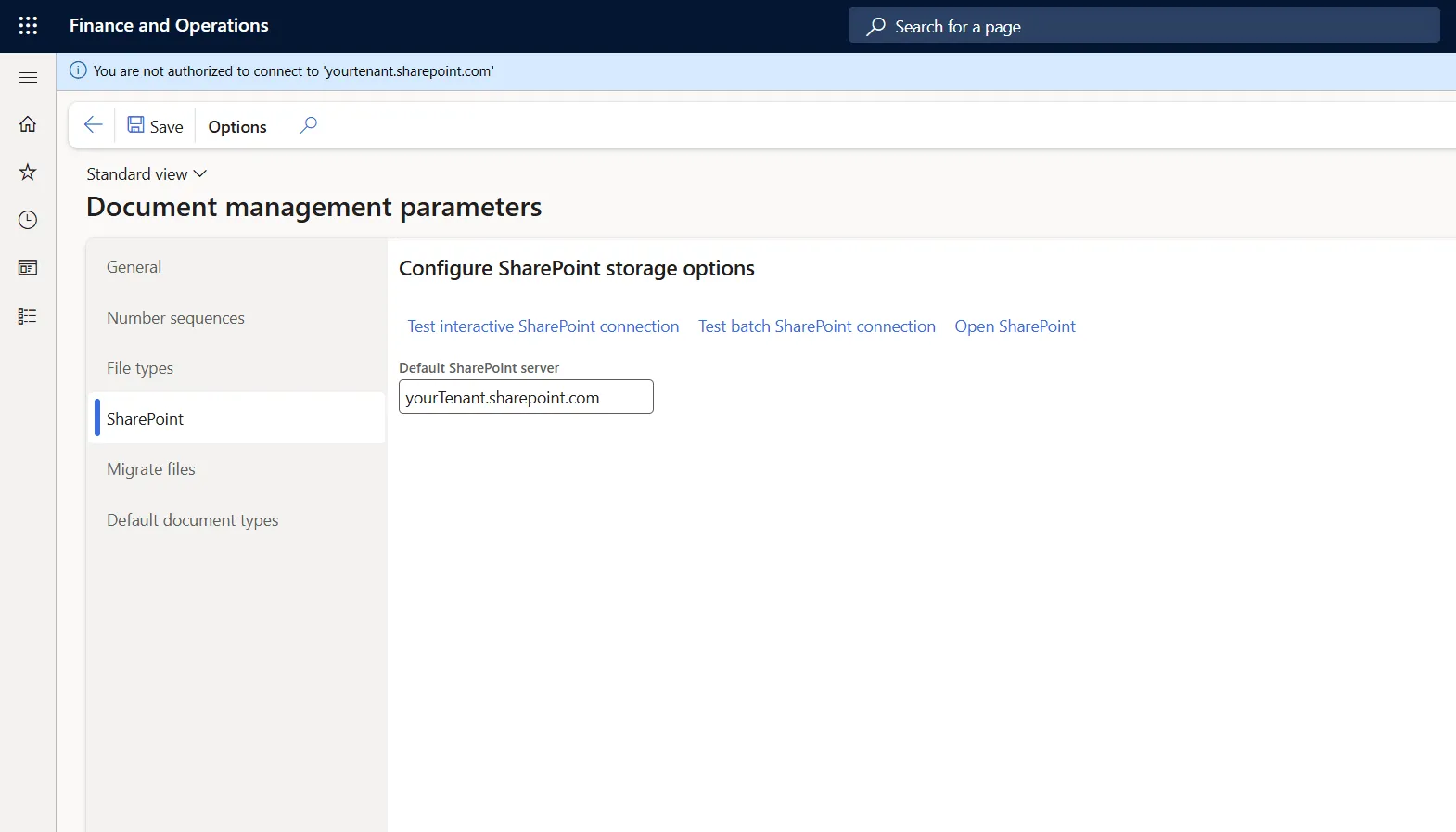
The connection test on the Document management parameters page shows the same problem. Before the fix it says that you are not authorized to connect.
What changed
Starting with F&O version 10.0.40, Microsoft deprecated the previous user impersonation method. Its replacement is the SharePoint user authentication feature, which is mandatory from version 10.0.42. You now have to grant application-level access to SharePoint yourself for non-interactive batch scenarios, because a tenant does not get it by default.
Interactive vs. batch connections
- Interactive connections keep using the permissions of the signed-in user.
- Non-interactive batch connections now rely on the application-level access that you set up in the next section.
Calling SharePoint as a different user than the one who is signed in is no longer supported.
If your tenant has conditional access policies for SharePoint, apply the same policies to F&O, because the interactive connection passes the F&O sign-in through to SharePoint. If managed device policies are enabled in SharePoint, the integration with F&O stops working.
How to set up application-level access
The setup is one PowerShell script that runs once for the whole tenant and covers every Microsoft-managed F&O environment in it. An administrator of the Microsoft Entra ID tenant has to run the script. Global Administrator works. According to Microsoft’s documentation Cloud Application Administrator or Application Administrator is enough, because the permission is on SharePoint Online and not on Microsoft Graph. If you do not have one of these roles, send the script to someone who does.
Know what you are granting before anyone runs it. The script gives the SharePoint application permission Sites.ReadWrite.All to Microsoft Dynamics ERP, the Microsoft first-party application that represents F&O in your tenant. The permission lets the application create, read, update and delete documents and list items in all site collections of the tenant without a signed-in user, so clear it with your SharePoint administrator first.
The script needs the Microsoft Graph PowerShell SDK. Run it in PowerShell on your own workstation. Microsoft recommends PowerShell 7 for the SDK. Windows PowerShell 5.1 works too, but there the execution policy has to be RemoteSigned or less restrictive. Nothing has to be installed in the F&O environment. If the module is missing, install it first.
Install-Module Microsoft.Graph.Applications -Scope CurrentUser -Repository PSGalleryReplace yourtenant.onmicrosoft.com in the script with your own tenant domain or tenant ID. A sign-in window opens when the script connects.
Import-Module Microsoft.Graph.Applications

# The parameter for TenantId needs to be changed
Connect-MgGraph -TenantId yourtenant.onmicrosoft.com -Scopes 'Application.ReadWrite.All'

# These AppIds do not change as they are the first party application IDs
$erpServicePrincipal = Get-MgServicePrincipal -Filter "AppId eq '00000015-0000-0000-c000-000000000000'"
$sharePointServicePrincipal = Get-MgServicePrincipal -Filter "AppId eq '00000003-0000-0ff1-ce00-000000000000'"
$spAppRole = $sharePointServicePrincipal.AppRoles | where {$_.Value -eq 'Sites.ReadWrite.All'}

# Assign the SharePoint 'Sites.ReadWrite.All' permission to the Microsoft Dynamics 365 finance and operations application
New-MgServicePrincipalAppRoleAssignedTo -ServicePrincipalId $erpServicePrincipal.Id -PrincipalId $erpServicePrincipal.Id -ResourceId $sharePointServicePrincipal.Id -AppRoleId $spAppRole.Id
On a tenant that has been live for a while someone may have run the script already. To check, run the script without its last command and then run this one. If it returns a row, the permission is there and you can go straight to the test.
Get-MgServicePrincipalAppRoleAssignment -ServicePrincipalId $erpServicePrincipal.Id -All | Where-Object { $_.AppRoleId -eq $spAppRole.Id }Test the connection
Run the test in a sandbox or production environment. Microsoft supports SharePoint storage only in Microsoft-managed environments, so a failed test on a one-box development VM says nothing about the script.
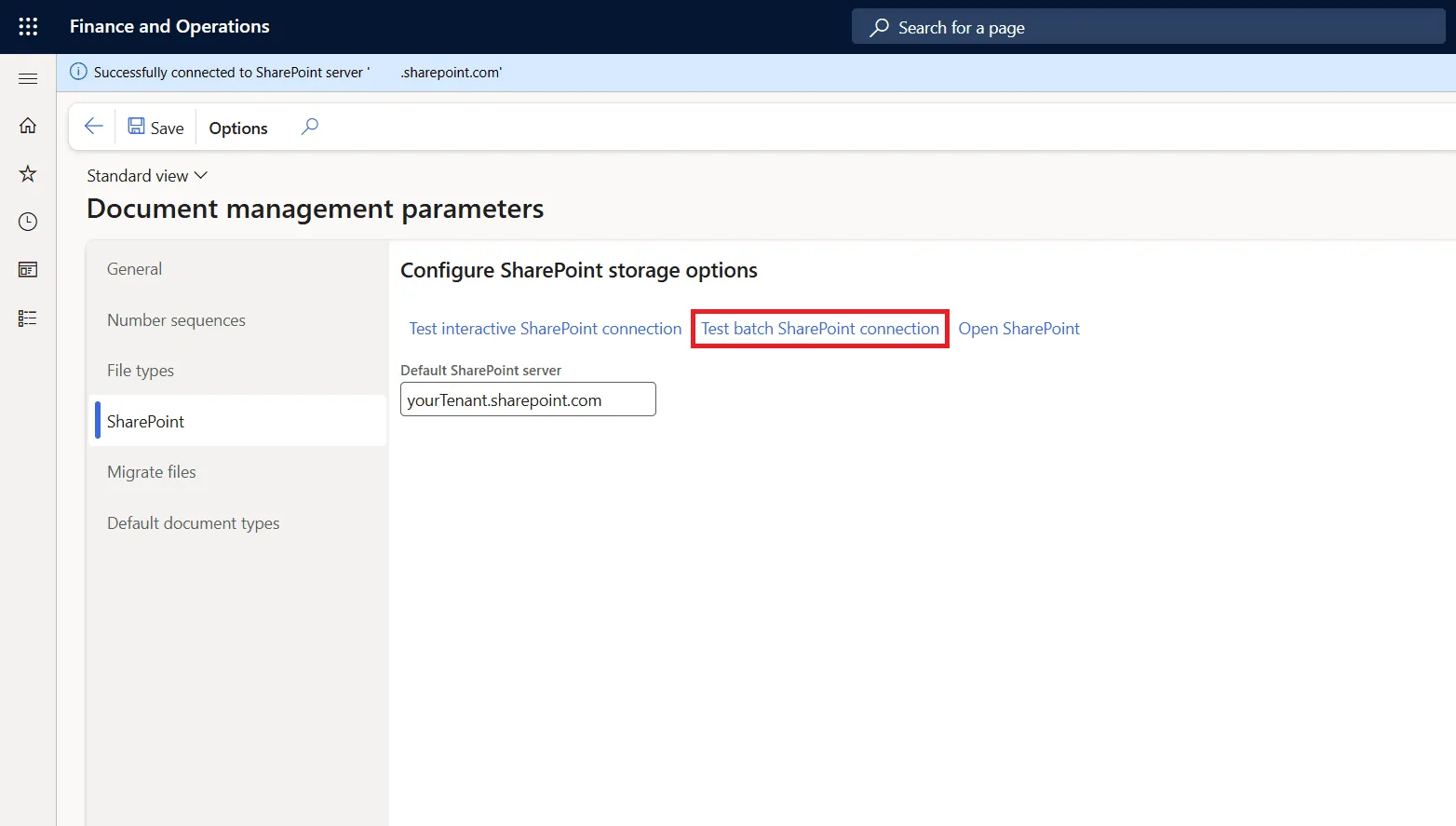
Go to Organization administration > Document management > Document management parameters, open the SharePoint tab and select Test batch SharePoint connection. The message at the top should confirm that F&O connected to your SharePoint server. The Test interactive SharePoint connection button next to it checks the interactive connection with your own user.
Then run the failed batch job again.
Did the script fix batch printing in your environment? Let me know on LinkedIn or through the contact page.
Links
- https://learn.microsoft.com/en-us/dynamics365/fin-ops-core/dev-itpro/organization-administration/configure-document-management#one-time-registration-process
- https://learn.microsoft.com/en-us/dynamics365/fin-ops-core/fin-ops/get-started/removed-deprecated-features-platform-updates#sharepoint-integration-authentication-using-a-microsoft-managed-high-trust-connection
- https://learn.microsoft.com/en-us/entra/identity/enterprise-apps/grant-admin-consent