Enable and Configure Virtual Entities in Microsoft Dynamics 365 F&O
How to enable virtual entities so D365 F&O data is available live in Dataverse and Power Platform without copying it. Setup, verification and practical use cases.

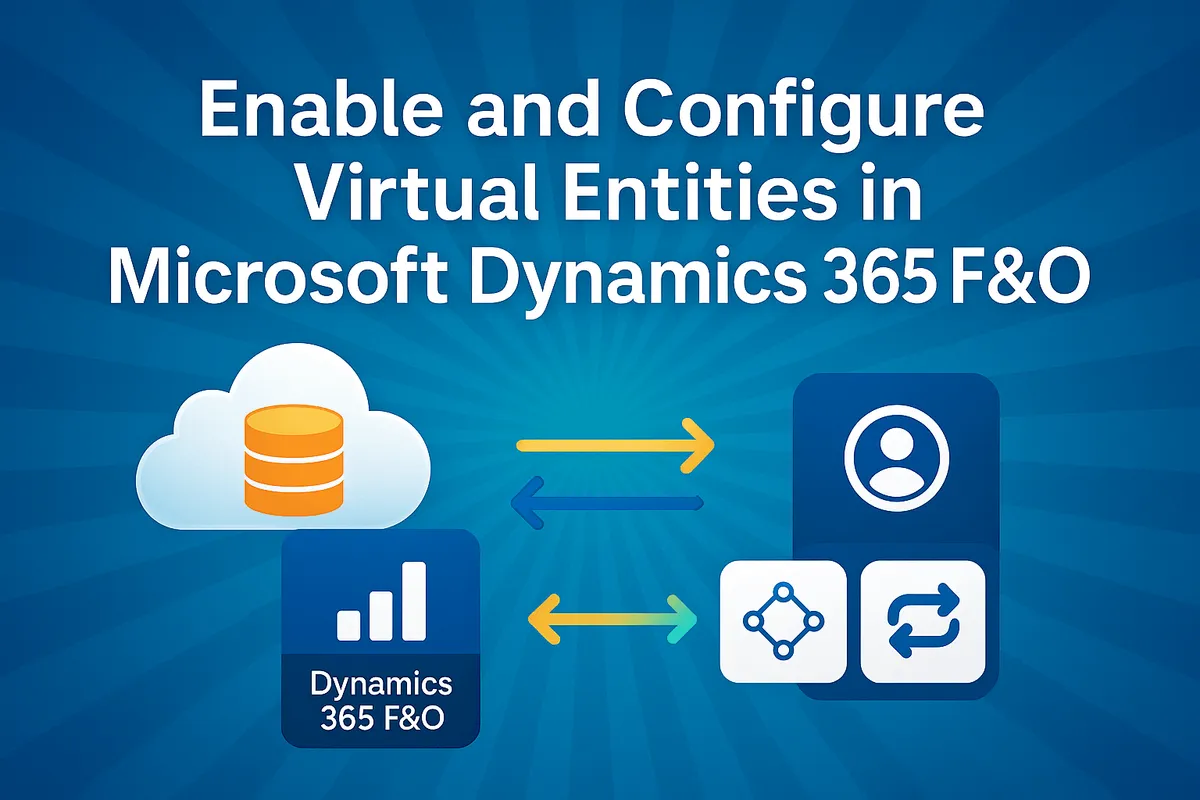
Microsoft Dynamics 365 Finance & Operations offers powerful integration capabilities with other Microsoft platforms, particularly through Virtual Entities. These entities enable real-time access to data from Dynamics 365 F&O directly within Dataverse and Power Platform without duplicating data storage. Let’s explore how to properly set up and use Virtual Entities effectively.
Understanding Virtual Entities
Virtual Entities facilitate seamless integration by making Dynamics 365 F&O data accessible within Dataverse without physically storing the data there. Instead, the data remains live and up-to-date in F&O, reducing data duplication and storage costs. Virtual Entities essentially serve as dynamic links, making F&O data available for apps and automation within the Power Platform.
Why Use Virtual Entities?
- Real-Time Integration: Access data instantly, reflecting its current state in Dynamics 365 F&O.
- Efficiency and Storage Optimization: Avoid duplicate data storage costs.
- Simplified Development: Streamline integration without complex synchronization setups.
- Comprehensive CRUD Operations: Perform create, read, update, and delete operations directly from Dataverse and Power Platform apps.
Enable Virtual Entities in Dataverse
- Open the Power Platform Admin Center and select the Environments tab.
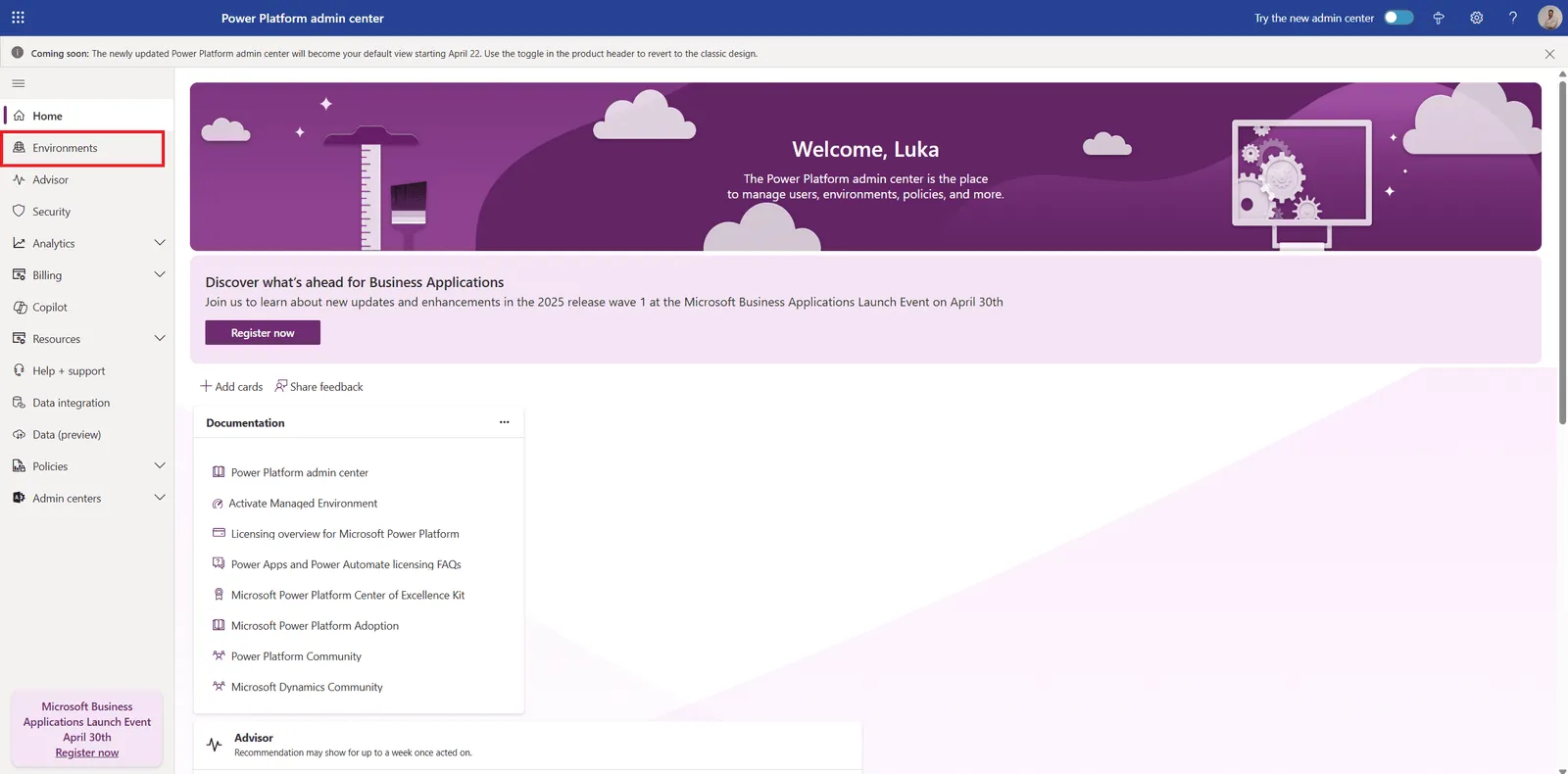
- Choose the Environment linked to your Dynamics 365 F&O instance.
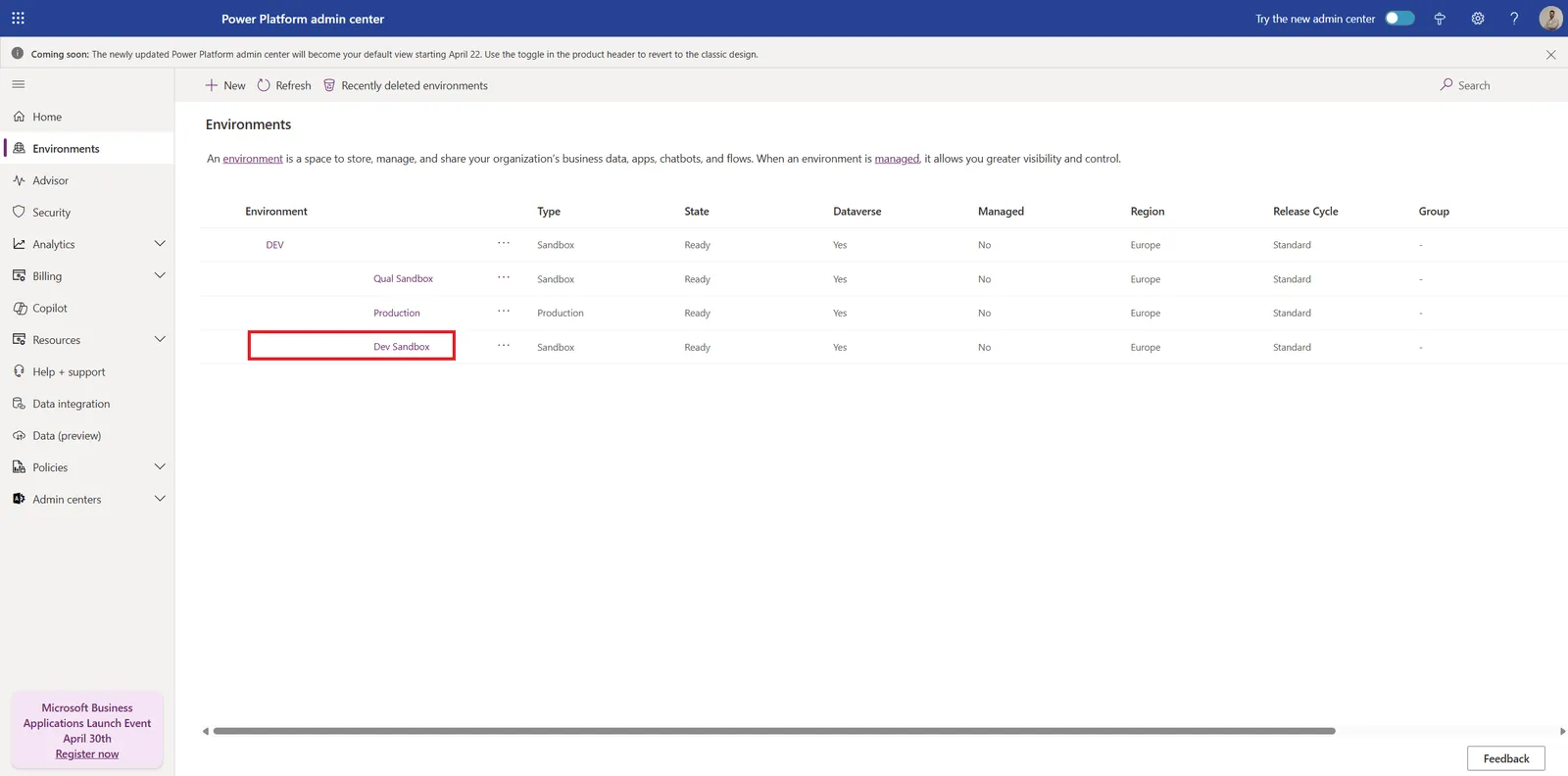
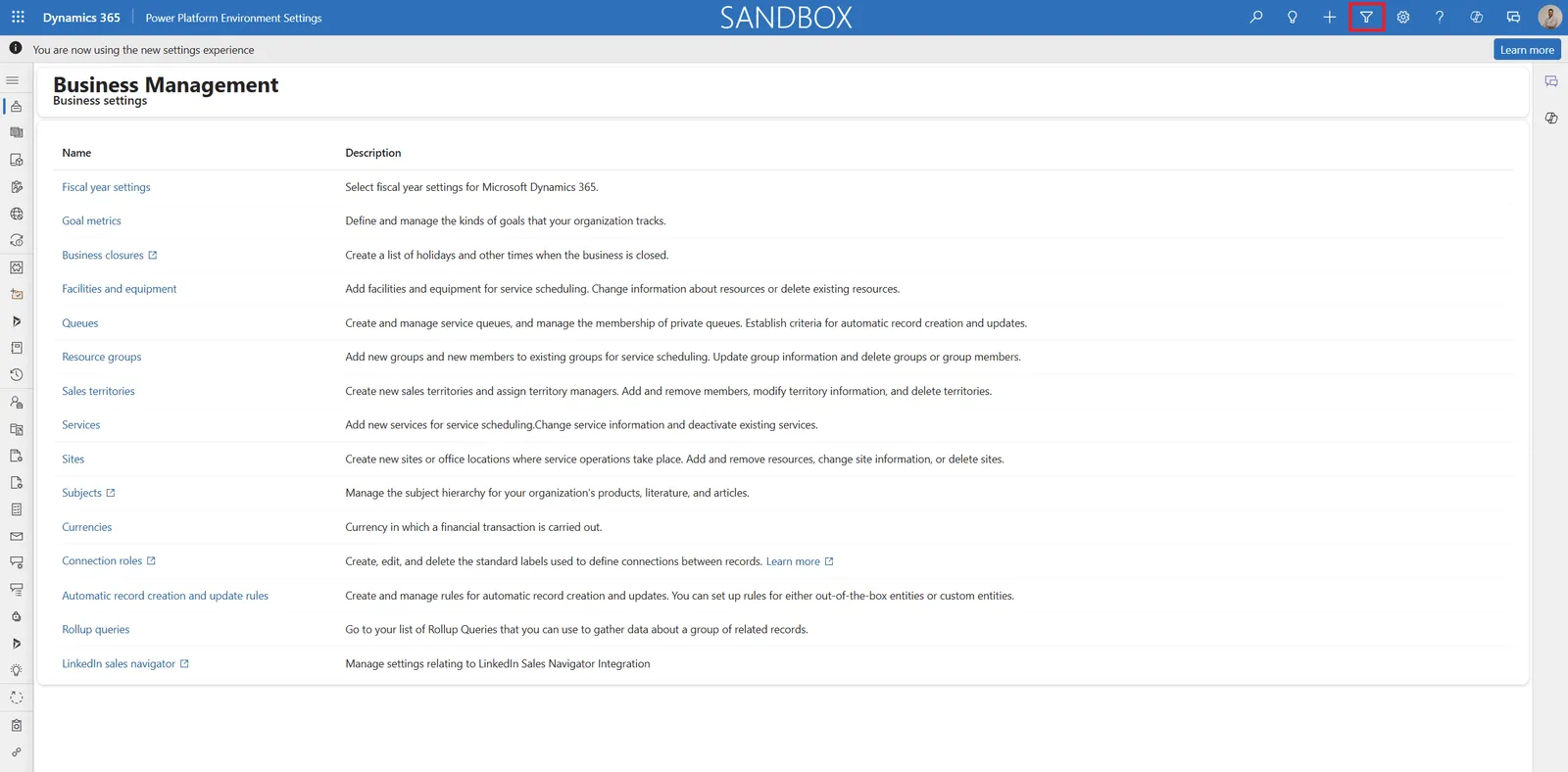
- Click on the Environment URL in the details section to open the environment, then click the Advanced Find filter icon.
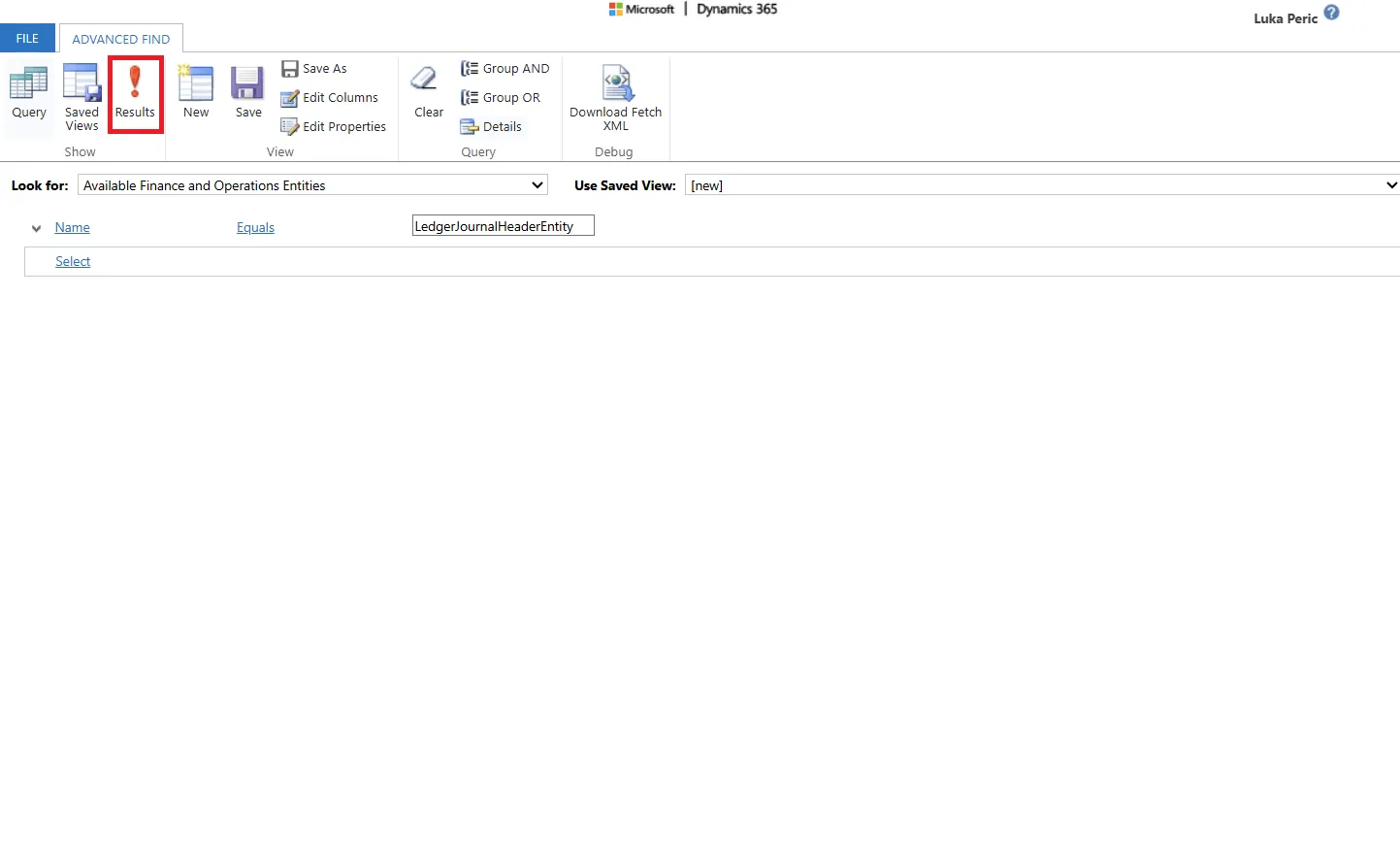
- From the Look for dropdown, select Available Finance and Operations entities, apply additional filters as needed, and click Results.
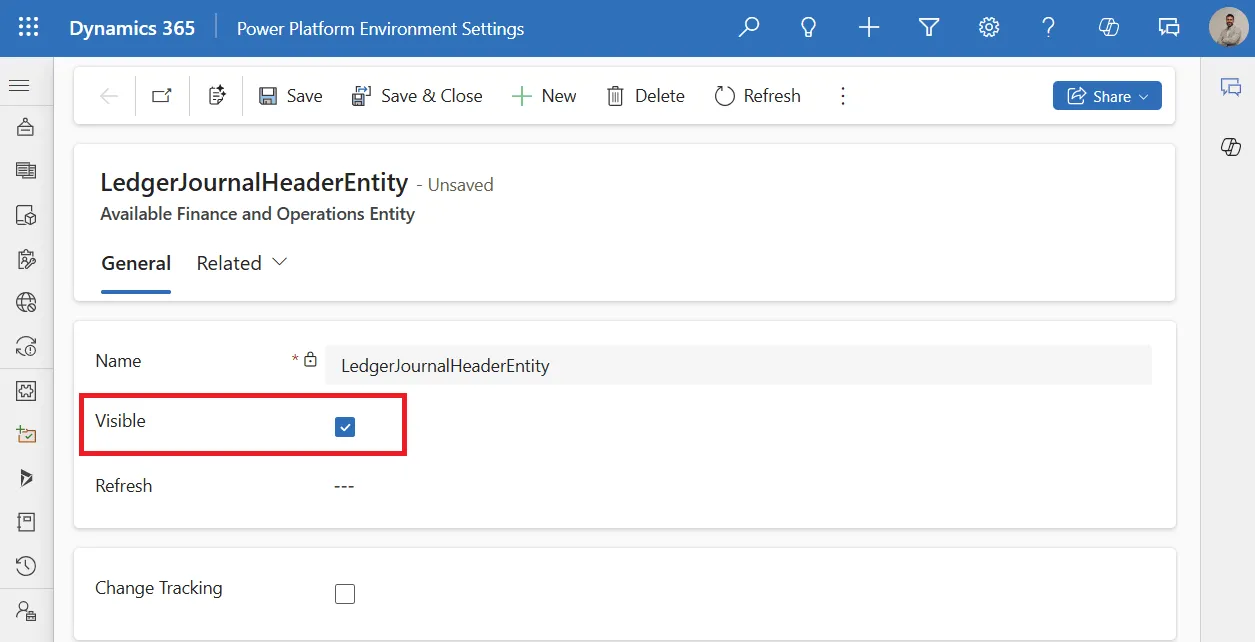
- Locate and open the entity you wish to activate.
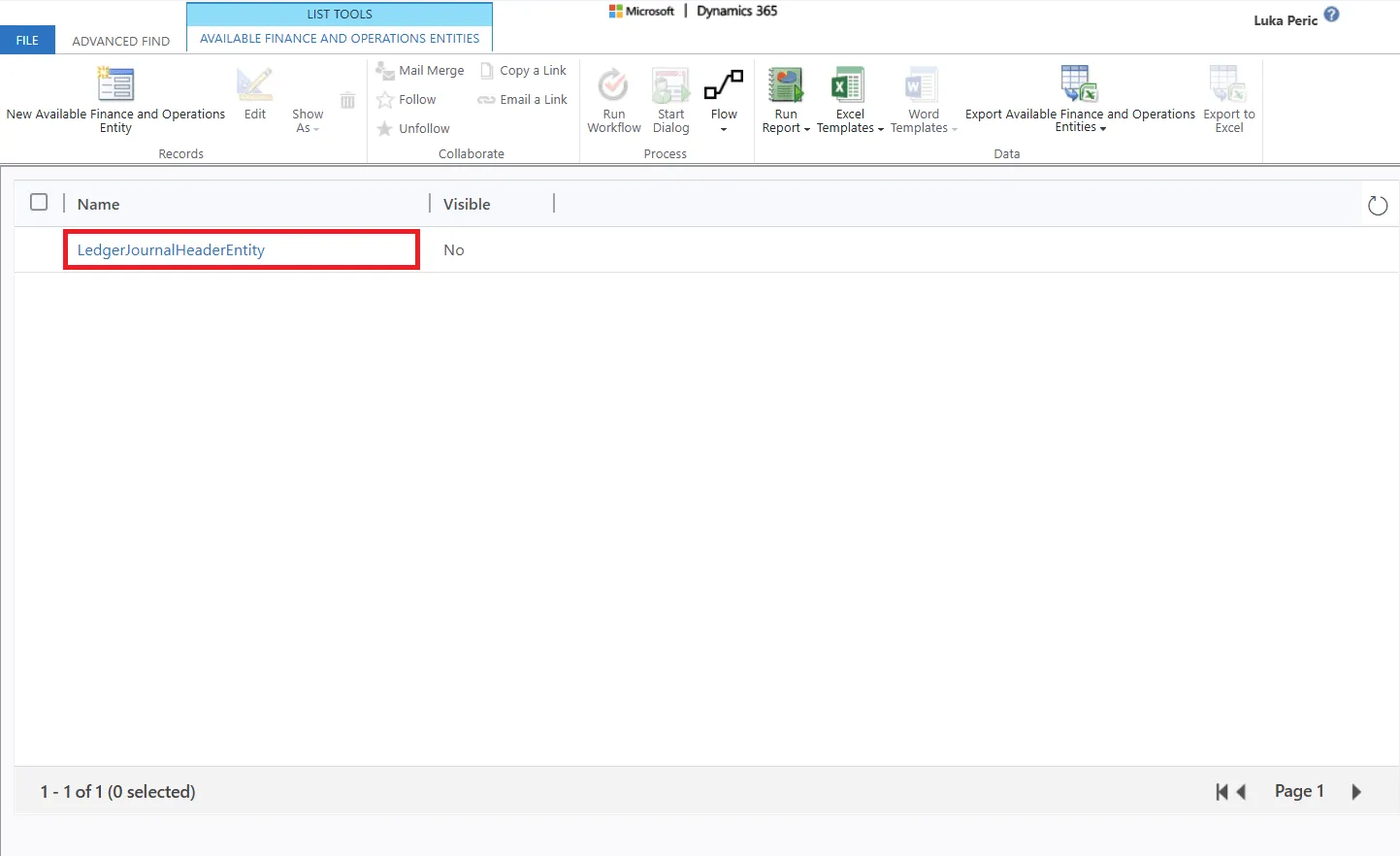
- Check the Visible box and save your changes.
Verifying Your Virtual Entities Setup
To confirm your Virtual Entities are configured correctly:
- Navigate to Tables in Power Apps and search for your Virtual Entity.
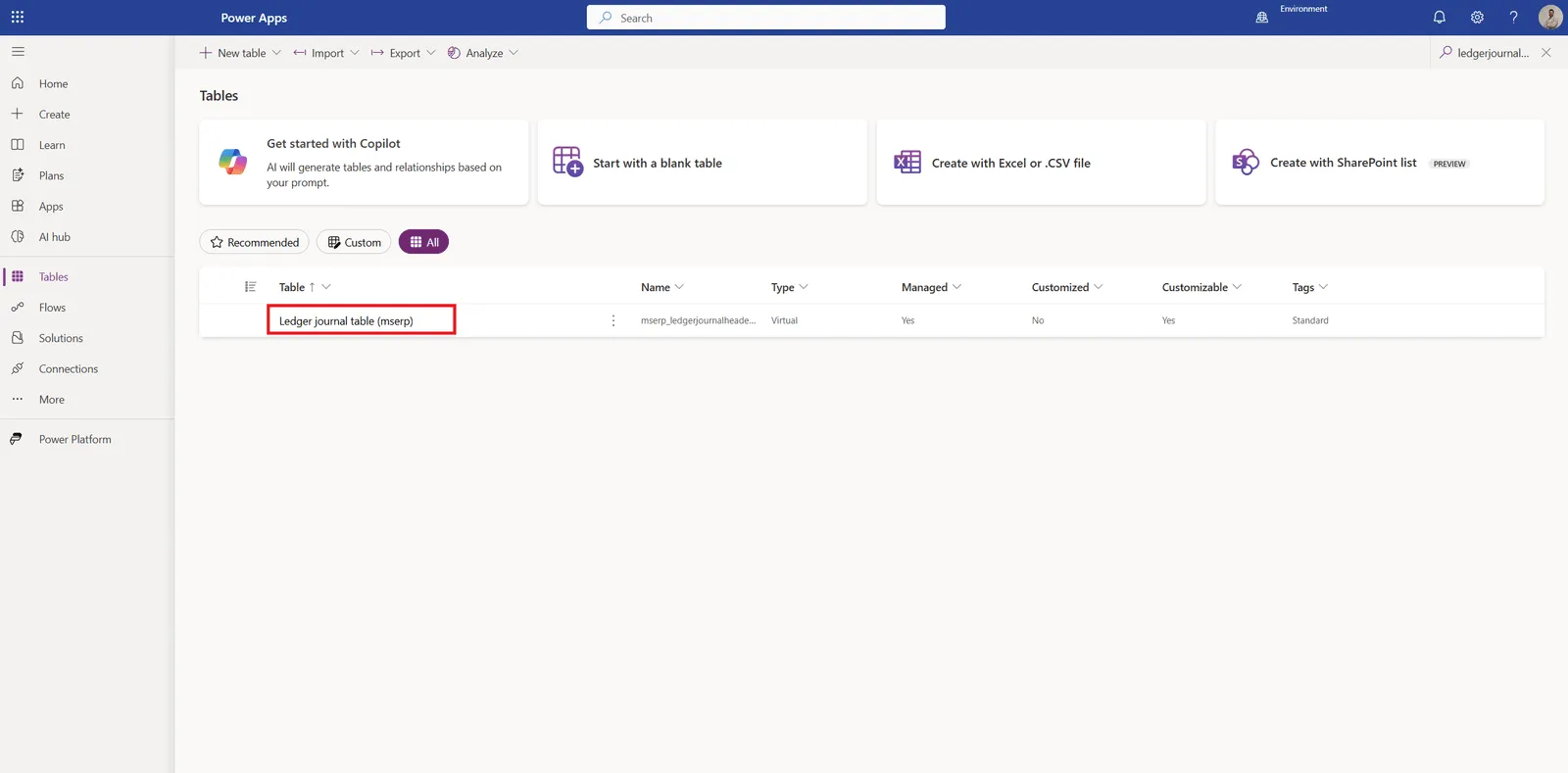
- Open the table to verify data synchronization with Dynamics 365 F&O.
From Insight to Impact
Implementing Virtual Entities between Microsoft Dynamics 365 F&O and Dataverse simplifies data integration, enabling seamless real-time synchronization between ERP and CRM systems. By following these steps and best practices, your organization can significantly improve operational efficiency and departmental collaboration.
Virtual Entities also enable integration with Microsoft Fabric through Dataverse connectors, providing a streamlined, efficient alternative to traditional BYOD systems.
Have you already started leveraging Virtual Entities? What challenges or successes have you experienced? Share your insights and advice below!