Enable and configure Dual-write in Microsoft Dynamics 365 F&O
How to set up Dual-write between D365 F&O and Dataverse. Prerequisites, the Dual-write application in LCS, the table map templates, the initial sync and common issues.

Dual-write keeps data in Dynamics 365 Finance and Operations (F&O) and Dataverse in sync in near real time, in both directions. If you are still choosing between Dual-write and virtual entities, read the comparison first. This post is the setup itself. It covers the prerequisites, the Dual-write application in Lifecycle Services (LCS), the table map templates from Microsoft, the initial sync and a check that the data arrived in Dataverse.
One thing to know before you switch Dual-write on is that live sync is synchronous. While a table map is running, each save to a mapped table is also written to the other side. When that write fails, the save fails too and the user sees an error.
Step 1. Check the prerequisites
Before you start, check a few things:
- F&O must be on version 10.0.9 with platform update 33 or later and the customer engagement (CE) apps on platform version 9.1.0000.11732 or later. Every environment that is still in service already meets both.
- F&O and the CE apps must be in the same Microsoft Azure datacenter and in the same Microsoft Entra tenant.
- Both must be in a region where Dual-write is available. Microsoft lists the regions in the system requirements and currently has no plans to add more.
- The F&O environment must be a Tier 2 or higher sandbox, a production environment or a unified environment. Dual-write is not supported on cloud-hosted dev boxes or on F&O trial instances.
- At least 1 GB of Dataverse database capacity must be available, otherwise the setup fails. Plan for more, because the Dataverse database that the Power Platform integration adds often takes 3 GB or more.
- You need the System administrator role in F&O and in the Dataverse environment.
Step 2. Add the Dual-write application in LCS
These steps are for environments that are managed in LCS. A unified environment is created and managed in the Power Platform admin center, so there is no LCS page for it. The environment templates for Finance and Supply Chain Management already install Dual-write core solution and Dual-write Application Core Solutions, so open the Dual-write page in F&O (Step 4) and check what is already there before you install anything.
Microsoft has required every F&O environment to be linked to a Power Platform environment since 1 May 2025, so the Power Platform integration is normally already in place when you open LCS. Check which Dataverse environment F&O is linked to before you go on, because Dual-write will use that one. If the Power Platform Integration section in LCS still shows a Setup button, finish that setup first. Microsoft describes it for a new Dataverse environment and for an existing one.
The Power Platform integration cannot be undone. Once F&O is linked to a Dataverse environment, the two stay linked. The Dual-write connection that you create in step 6 below sits on top of that link and can be reset later with Reset link on the Dual-write page in F&O. A reset removes all table maps, integration keys and the legal entity mapping, so afterwards you start again from Apply solution.
-
Sign in to Lifecycle Services with an administrator account.
-
Open the F&O environment that you want to connect.
-
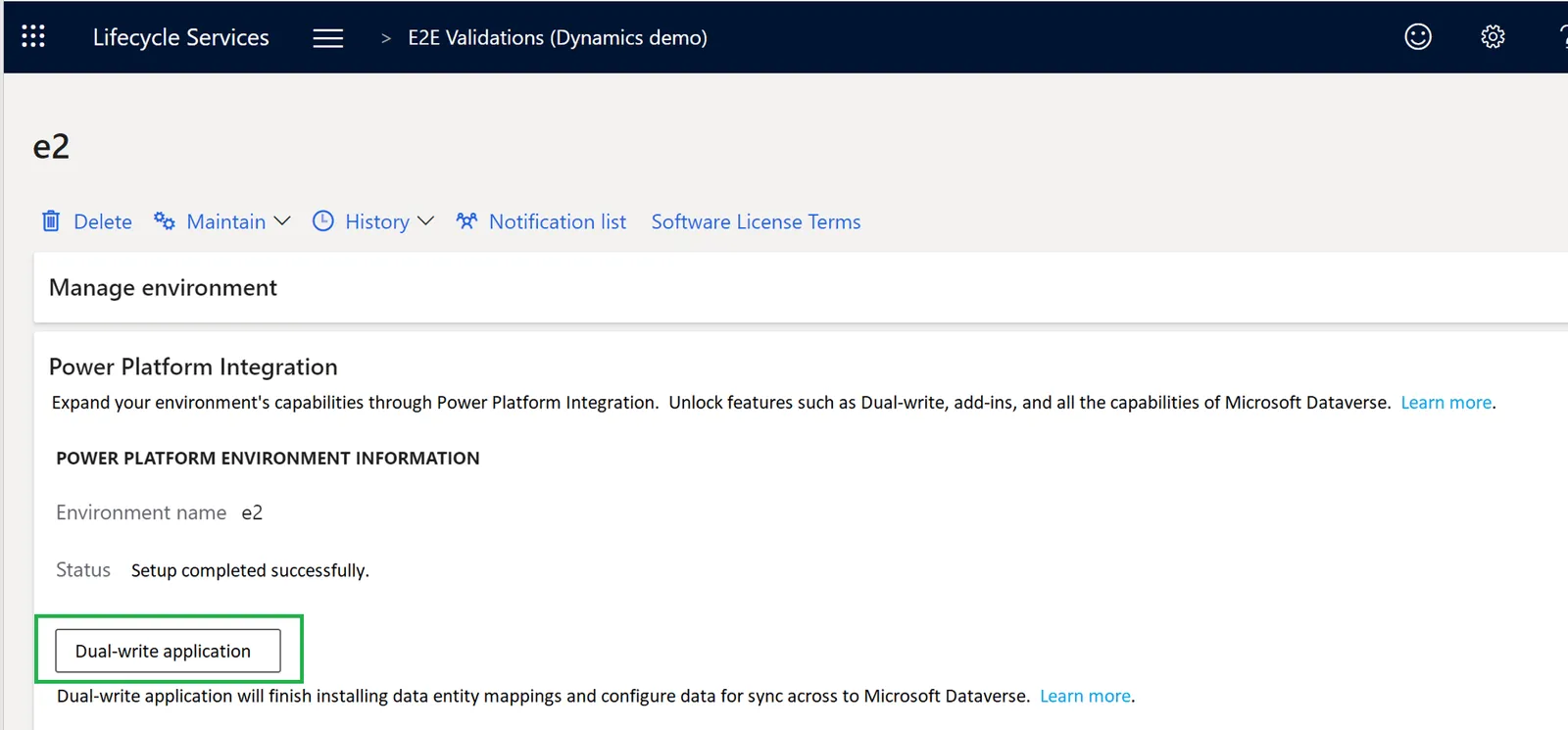
On the Environment details page, expand the Power Platform Integration section. The screenshot below is from Microsoft Learn.
-
Select Dual-write application, review the terms and conditions and then select Configure.
-
Refresh the Environment details page now and then to follow the progress. The setup usually takes 30 minutes or less. When it is done, the page shows a success message or an error that you have to fix before you go on.
-
Select Link to Power Platform environment to create the Dual-write connection between Dataverse and the database of this environment. This usually takes less than 5 minutes. The screenshot below is also from Microsoft Learn.
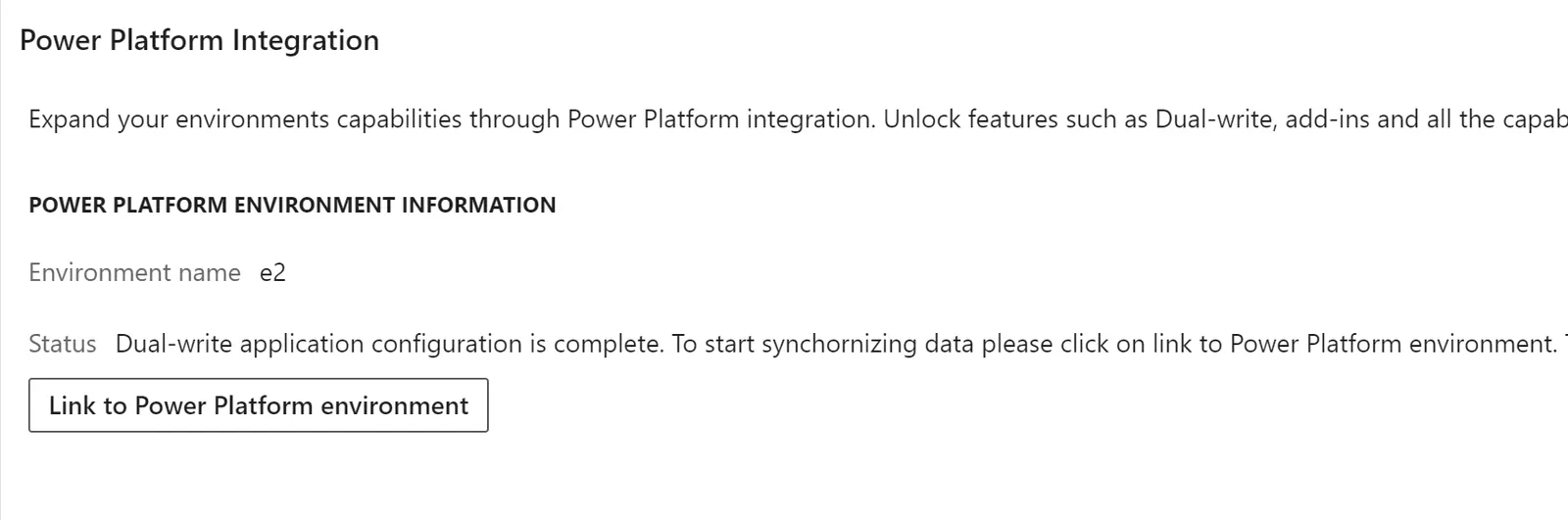
Once the connection is created, LCS shows a link to the Dual-write page in F&O. Use it to open the page and set up the table maps.
Step 3. Get the Dual-write templates
Building table maps from scratch takes a lot of time, so use the templates Microsoft provides wherever you can. They come as packages on Microsoft Marketplace and cover many data entities. You can still change them or build a map from scratch when you need to. Some packages can already be in your environment, for example after the LCS step. The list in step 7 below shows which ones and you can skip every package that is listed there as Installed.
-
Open Microsoft Marketplace at https://marketplace.microsoft.com and sign in.
-
Search for
Dual-write. Two packages have almost the same name. Dual-write core solution is the infrastructure. Dual-write Application Core Solutions contains the basic table maps, such as legal entities, currencies and exchange rates. You need both. The Finance, Supply Chain and other packages depend on them and can be added later. The screenshot below is from the time when the store was still called AppSource.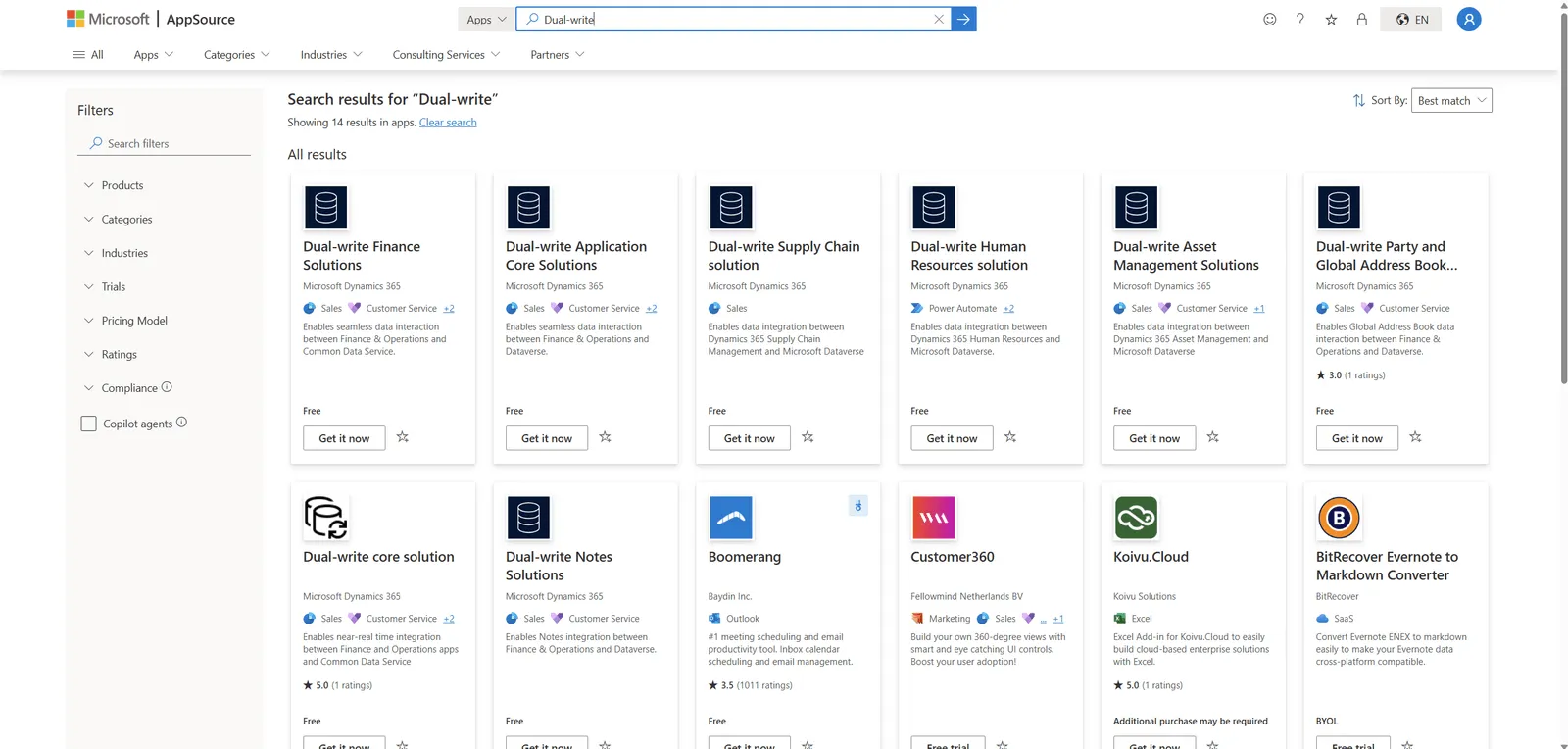
-
Select Dual-write core solution and click Get it now.
-
Confirm your details and click Get it now again.
-
You are redirected to the Power Platform admin center, where you select the environment in which you want to install the package.
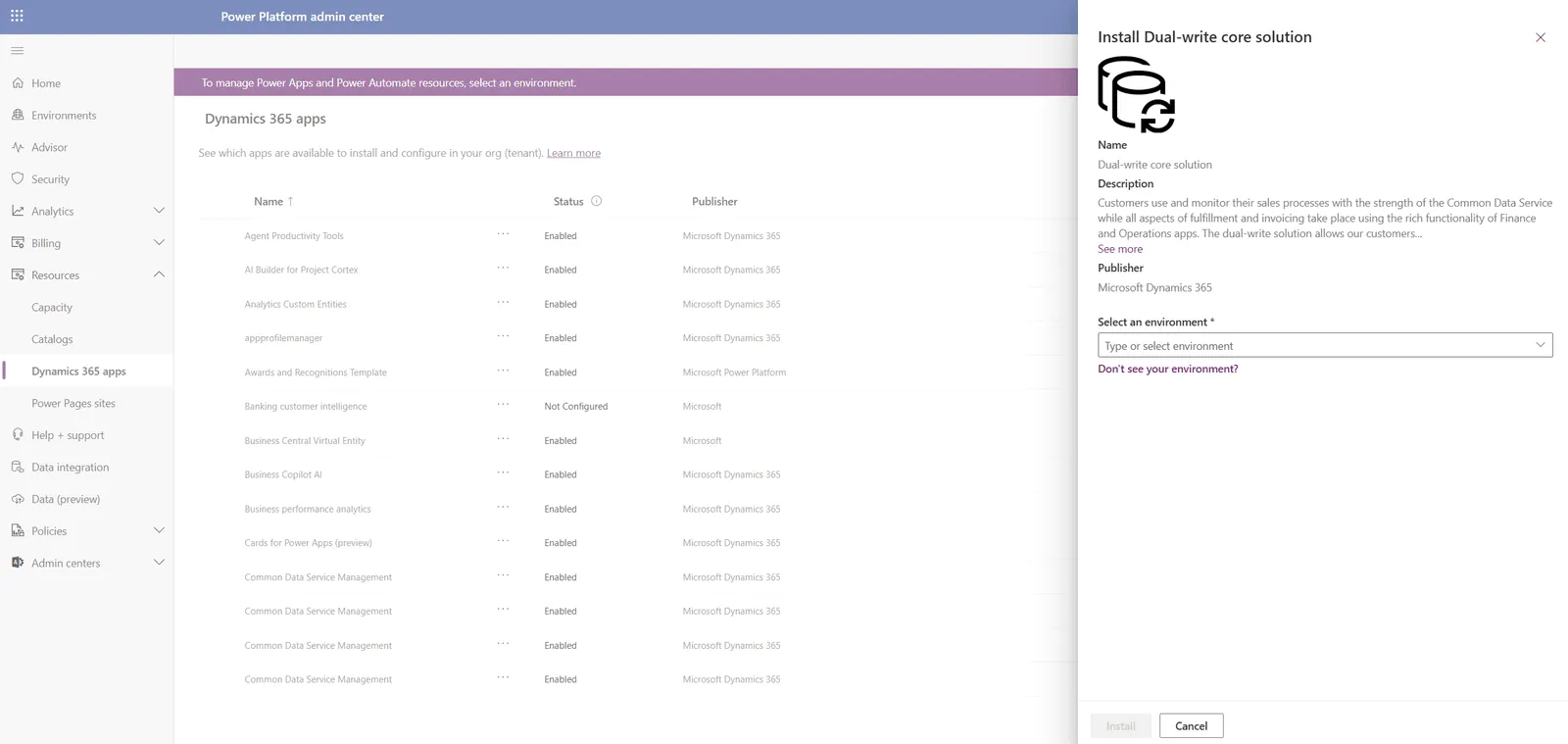
-
After you select the environment, accept the terms and start the installation.
-
Once it is installed, you can see it in the Power Platform admin center under Manage > Environments, your environment, Resources > Dynamics 365 apps.
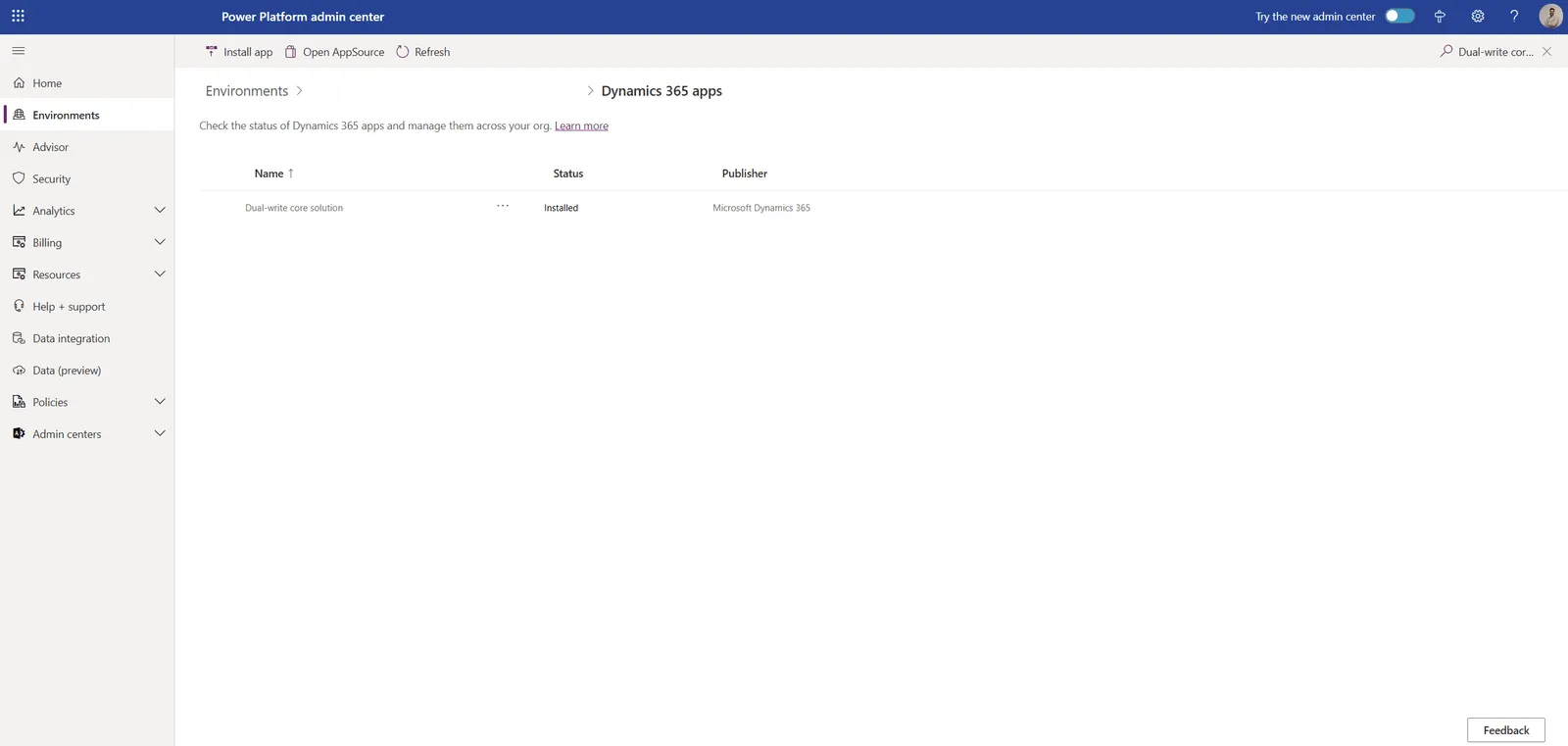
The screenshots show Dual-write core solution in the classic admin center. Install Dual-write Application Core Solutions the same way. If the admin center offers Update for a package that is already installed, run the update before you go on.
Step 4. Apply the solution and run the table maps
Now comes the important part, mapping your data. This step tells Dual-write which columns in F&O match which columns in Dataverse. Before you work with the table maps, apply the solution that contains them.
-
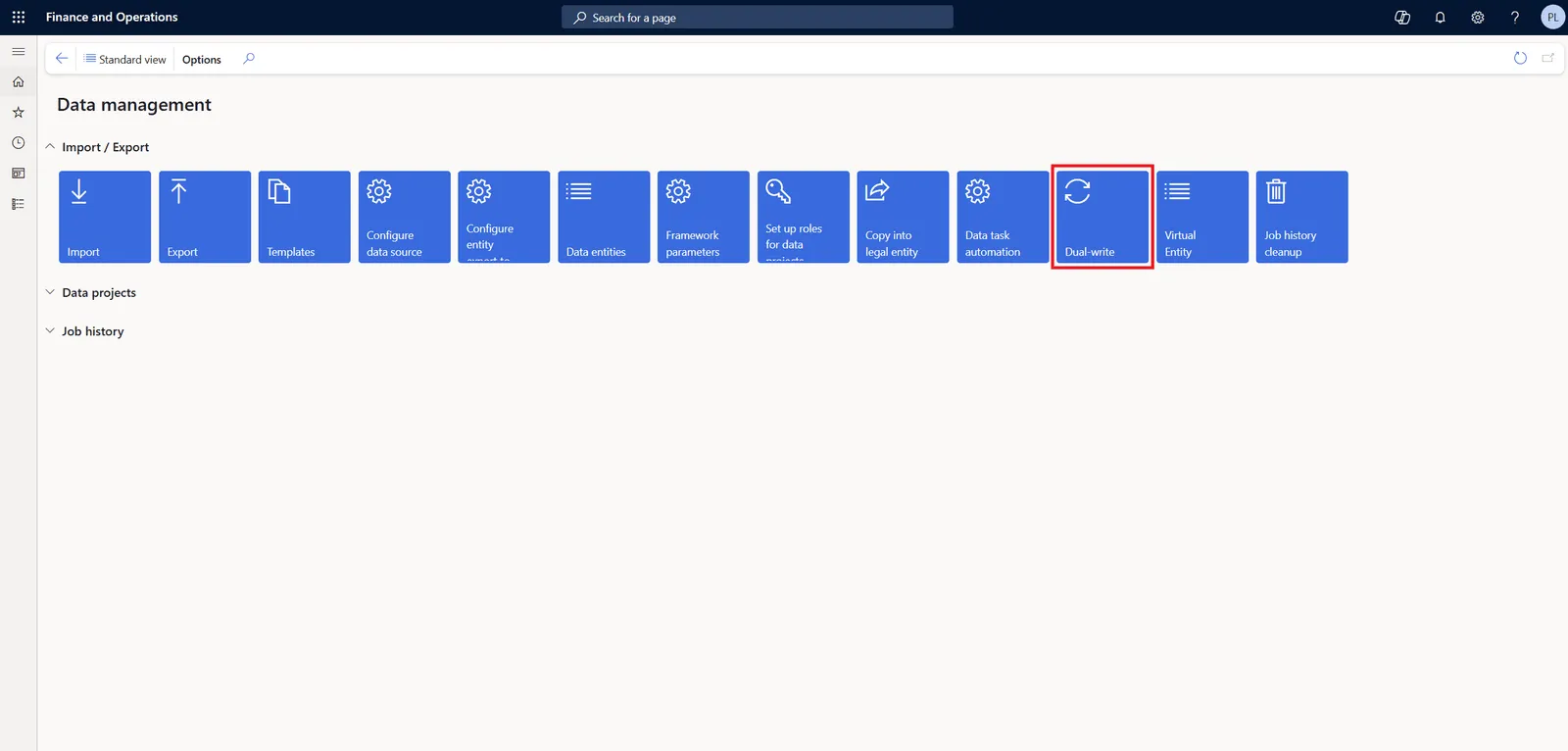
In F&O, go to Workspaces > Data management > Dual-write.
-
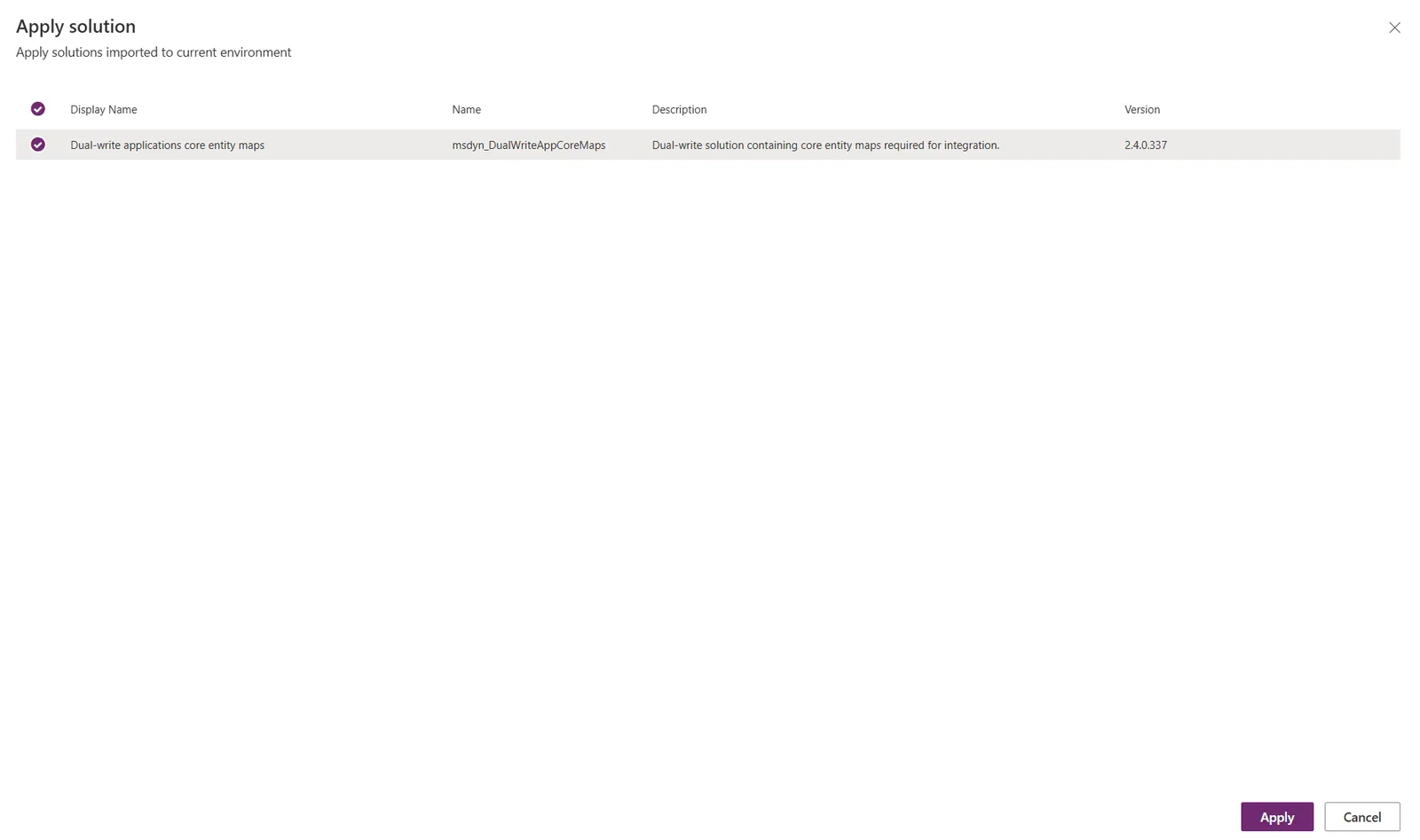
Select Apply solution. The Dual-write solutions that are installed in the linked Dataverse environment are listed there.
-
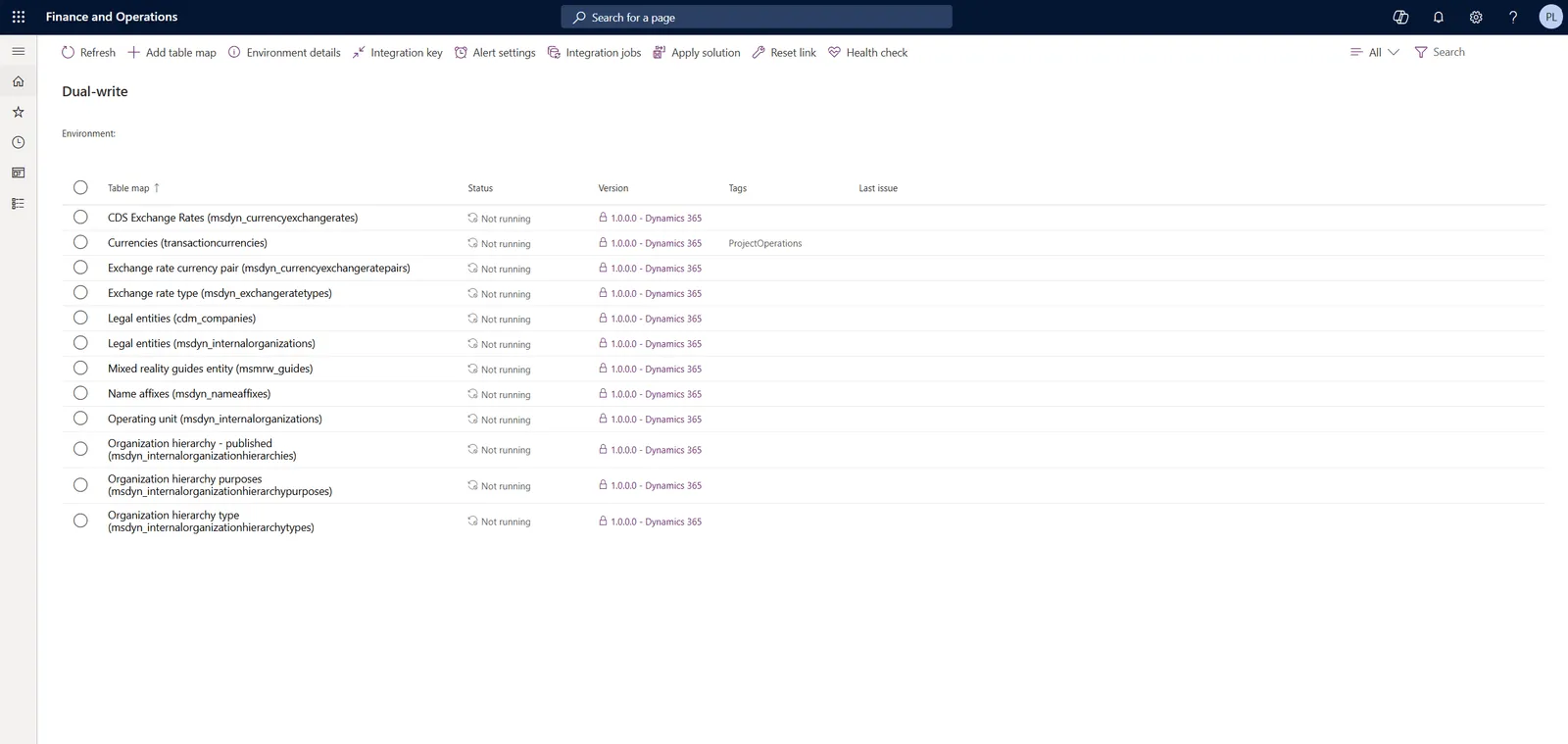
When the solution is applied, a notification confirms it and the table maps from the solution appear in the list.
-
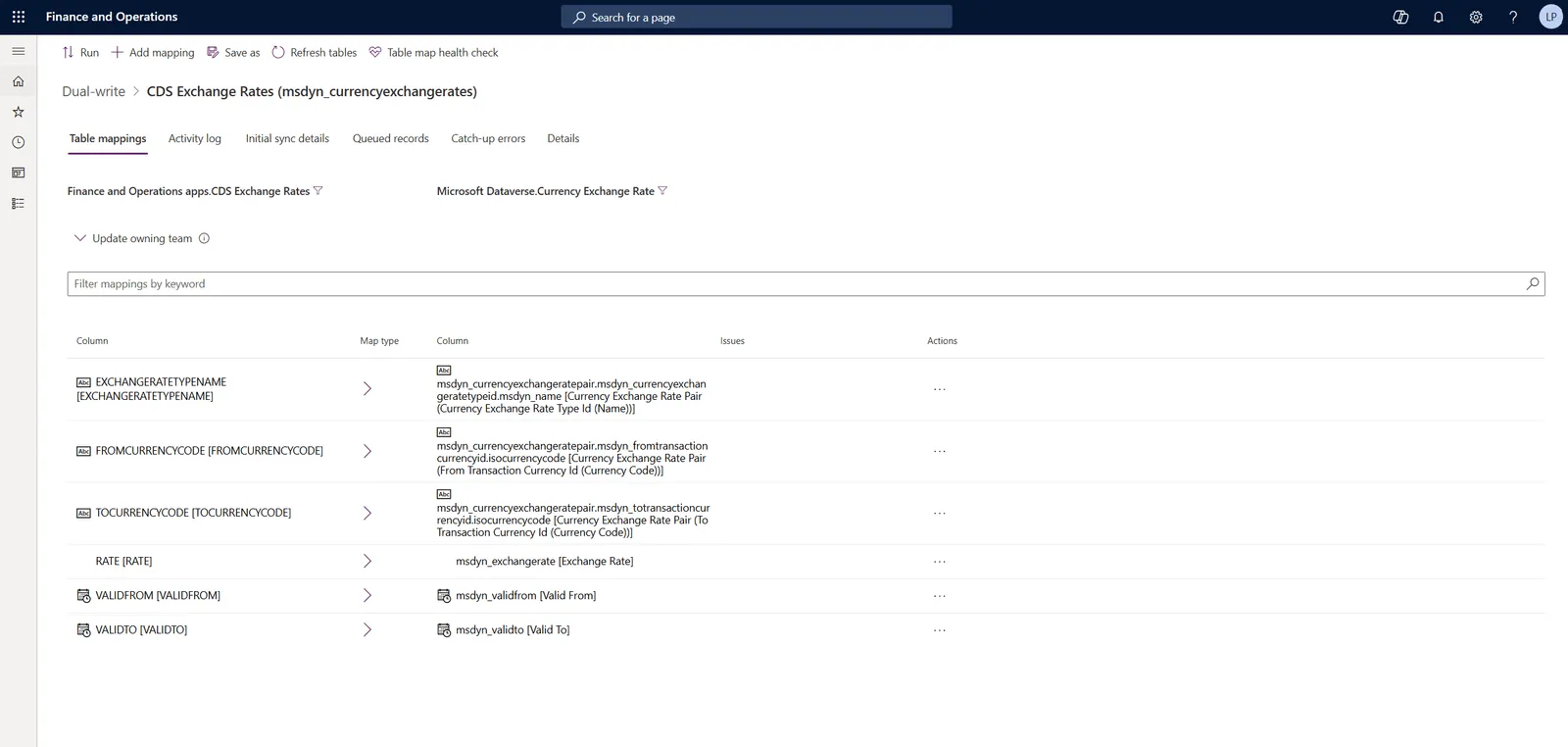
Select a table map to open it and check its column mappings. You can add or remove columns. Do it now while the map is not running, because changes to a running map are not saved. Later you have to stop the map first. When you save, Dual-write asks for a publisher and a version number and keeps your change as a new version of the map. Synced rows are stored in Dataverse and count against its capacity, so sync only the columns you need and use the filter on the map to leave out rows you do not need.
-
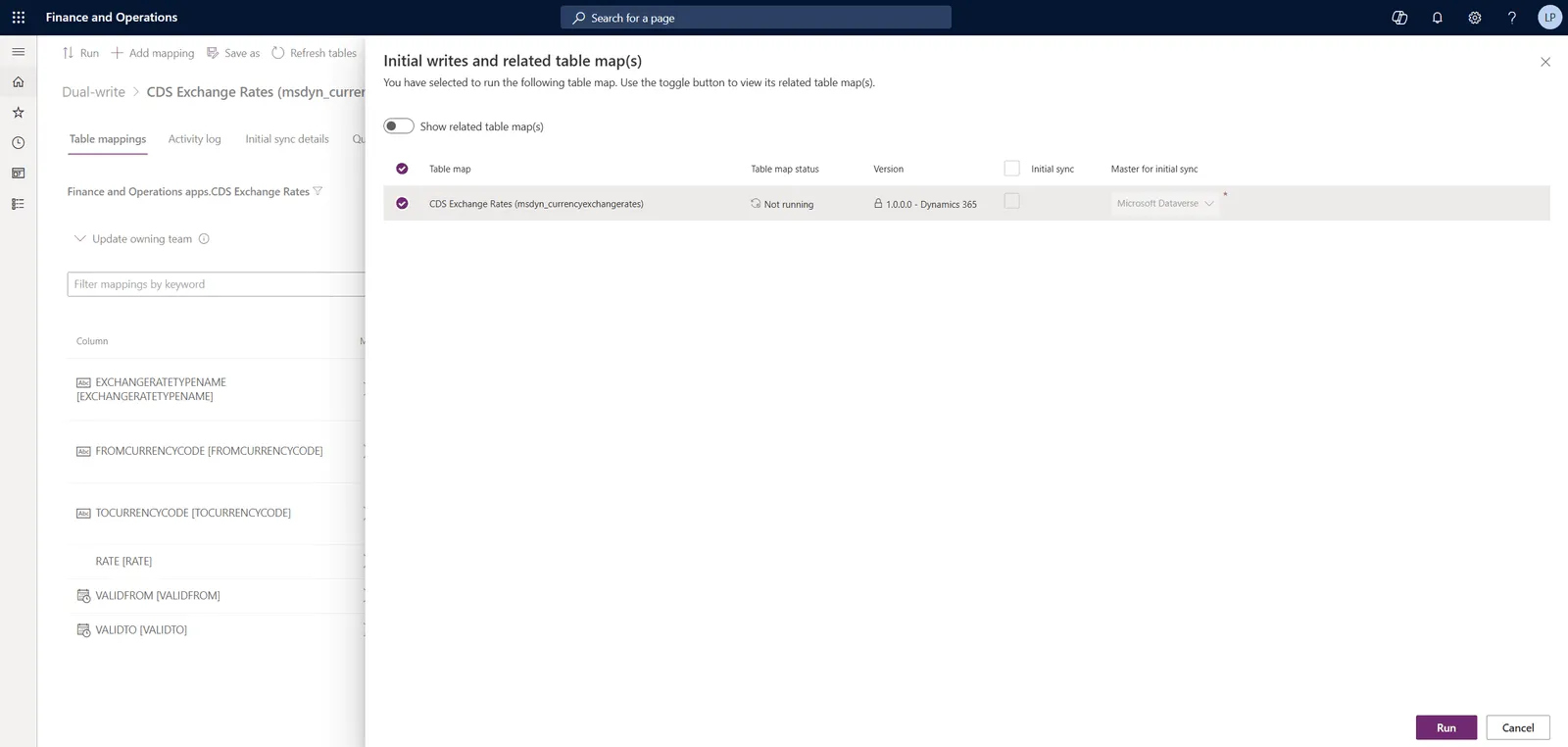
Select the table map and select Run. In the dialog, tick Initial sync if existing data should be copied. With the box cleared only new changes are synced. Master for initial sync decides which side wins when the same record exists on both sides with different values. The default is Dataverse. Turn on Show related table map(s) and run the related maps as well, because records fail to sync later when their reference data is missing on the other side. One run of the initial sync handles at most 500,000 rows per legal entity. The screenshot below shows the dialog with Initial sync still cleared.
-
The map status goes from Not running through Initializing to Running. Errors from the initial sync are on the Initial sync details tab.
In the column mappings of a table map, as in the CDS Exchange Rates screenshot above, the symbol between the two columns is the map type. F&O is on the left and Dataverse is on the right. Select the symbol to change the direction or to add a transform. Microsoft’s mapping reference writes the map types like this.
| Symbol | Meaning |
|---|---|
| > | One-way from F&O to Dataverse |
| < | One-way from Dataverse to F&O |
| = | Both directions |
| >> | One-way from F&O to Dataverse with a transform |
| << | One-way from Dataverse to F&O with a transform |
| >< | Both directions with a transform |
On the page itself the two one-way types with a transform are drawn as filled arrows.
Before other people start working with synced data, give them the right security roles in Dataverse. Microsoft’s guidance is to add every Dataverse user to both Dual-Write App User and Dual-Write Runtime User. The first role lets them read company and currency data. Without the second one they cannot create rows in a synced table.
Step 5. Check the data in Dataverse
-
Sign in to Power Apps.
-
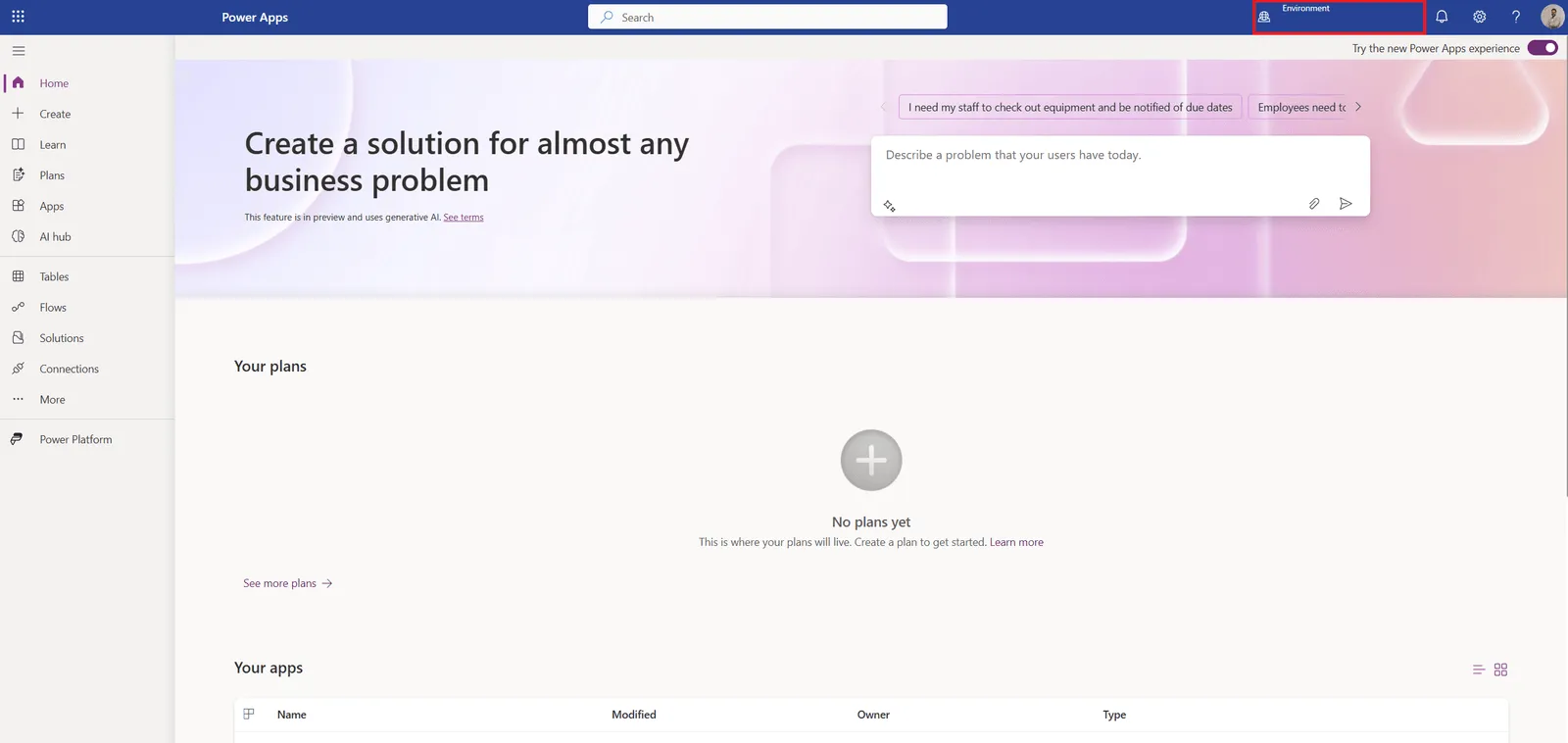
In the environment picker, select the environment that syncs with F&O.
-
Select Tables in the menu on the left.
-
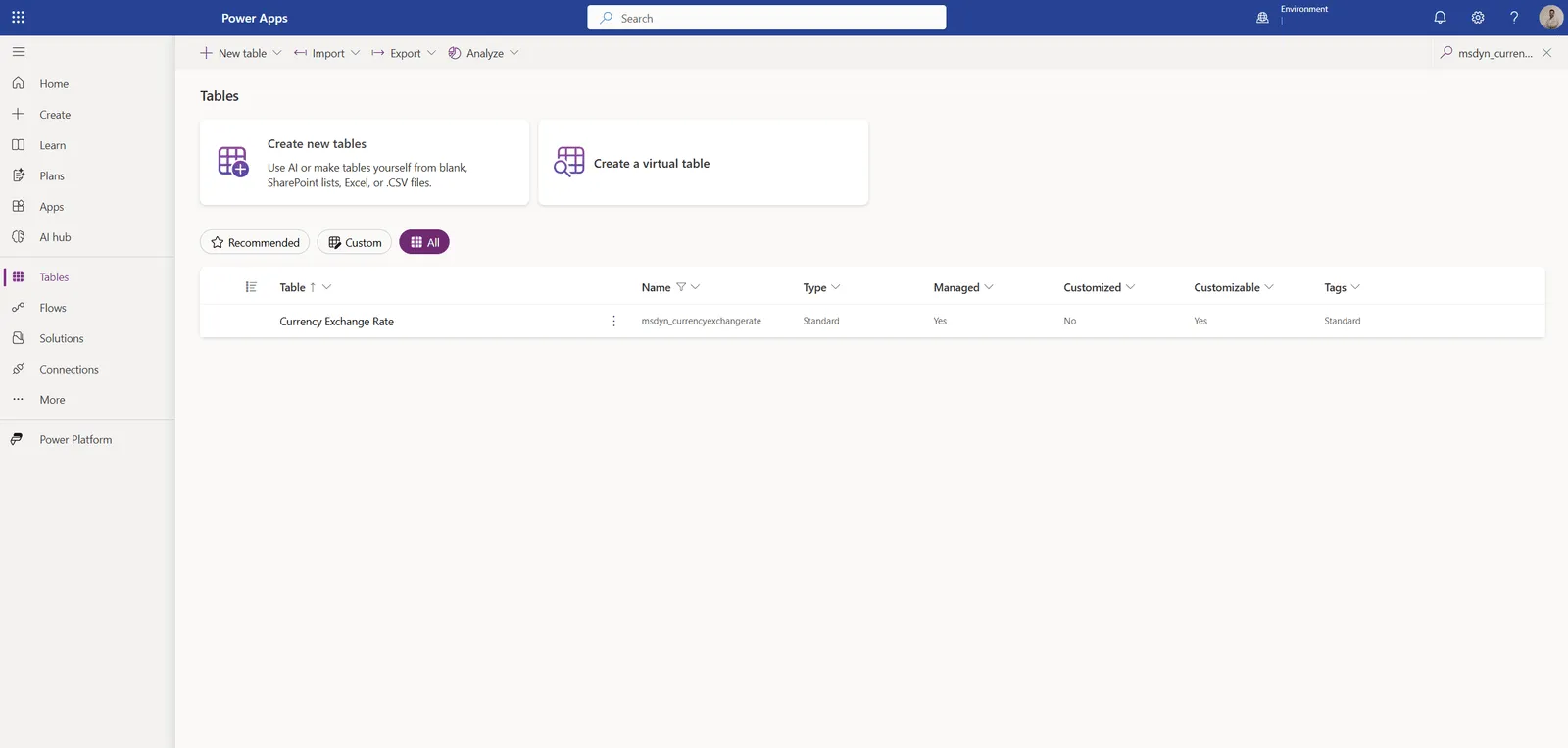
Search for the Dataverse table of your table map. For the CDS Exchange Rates map from the screenshots, that is Currency Exchange Rate. If it does not show up, switch the filter above the list to All.
-
Open the table and look at the synced rows in the columns and data pane. In that pane you can also choose which columns are shown.
Troubleshooting
The Microsoft templates are missing in Apply solution. Check in the Power Platform admin center that Dual-write Application Core Solutions is installed in the environment that is linked to F&O. After an install it can take a few minutes before the solution shows up.
The table map does not open. Make sure you have the System administrator role in F&O and in the Dataverse environment.
Saving a record fails with Unable to write data to entity. Check that the reference data the record points to exists on both sides. A customer cannot be written while its customer group is missing in Dataverse, so run the related table maps with an initial sync first. If the data is there, check that the Finance and Operations Virtual Entity solution is installed in the Dataverse environment. Microsoft names it as the fix for this error after the Dual-write app ID change of September 2025. Then check the integration keys on the Dual-write page.
Data is not syncing. Check the status of the table map first. Only a map with the status Running syncs and a paused map holds all changes in a queue until you resume it. If the map is running, open it and read the Activity log tab. It lists what happened to the map and lets you download the error logs.
Final thoughts
The setup itself is mostly waiting. The LCS step takes up to half an hour and the connection a few minutes more. The real work starts after that, when you decide which table maps to run and which columns to sync, because every row you sync is also stored in Dataverse.
Dual-write is not the tool for analytics. If you want F&O data in Microsoft Fabric or need a replacement for BYOD (bring your own database), use Link to Microsoft Fabric or Azure Synapse Link for Dataverse. Both take F&O tables directly and do not need Dual-write. I write about both in F&O integration patterns.
If you want F&O data in Dataverse without storing it there, the next post in this series covers virtual entities.
Have you configured Dual-write before? What gave you trouble? Let me know on LinkedIn or through the contact page.
Links
- https://learn.microsoft.com/en-us/dynamics365/fin-ops-core/dev-itpro/data-entities/dual-write/dual-write-overview
- https://learn.microsoft.com/en-us/dynamics365/fin-ops-core/dev-itpro/data-entities/dual-write/dual-write-system-req
- https://learn.microsoft.com/en-us/dynamics365/fin-ops-core/dev-itpro/data-entities/dual-write/lcs-setup
- https://learn.microsoft.com/en-us/dynamics365/fin-ops-core/dev-itpro/data-entities/dual-write/separated-solutions
- https://learn.microsoft.com/en-us/dynamics365/fin-ops-core/dev-itpro/data-entities/dual-write/enable-entity-map#enable-table-map
- https://learn.microsoft.com/en-us/dynamics365/fin-ops-core/dev-itpro/data-entities/dual-write/initial-sync-guidance
- https://learn.microsoft.com/en-us/dynamics365/fin-ops-core/dev-itpro/data-entities/dual-write/dual-write-troubleshooting-live-sync
- https://learn.microsoft.com/en-us/dynamics365/fin-ops-core/dev-itpro/data-entities/dual-write/reset
- https://learn.microsoft.com/en-us/dynamics365/fin-ops-core/dev-itpro/data-entities/dual-write/customizing-mappings
- https://learn.microsoft.com/en-us/dynamics365/fin-ops-core/dev-itpro/data-entities/dual-write/mapping-reference