How to create a personal D365 F&O dev environment
No license, no partner account, no Windows PC. What I tried to get my own Dynamics 365 F&O dev box, why it failed and how I ended up running the LCS VHD on Azure from a Mac for under €0.50 an hour.

When I started this blog, I quickly ran into a practical problem. Every post needs screenshots, every claim needs to be tested and every experiment needs somewhere to run. My work account was not the place for that. Those environments belong to the customer and I did not want blog experiments mixed with project work. I wanted an F&O environment that is mine, with my own tenant, my own admin user and my own rules.
I assumed this would be easy. It was not. Over a weekend I went through every free or cheap option I could find and one after another they failed for the same reason. Without a Dynamics 365 license or a partner account, Microsoft does not let you provision F&O anywhere. The only thing that does not check for a license is the downloadable VHD in LCS, the same one-box image partners use for local development.
That raised the next problem. The VHD wants a Windows machine with Hyper-V and 32 GB of RAM. My personal laptop is a MacBook with 16 GB. I looked at buying a used workstation, then at renting a remote PC and then realised the obvious. The VHD is a disk image and Azure can boot disk images. Upload it once, attach it to a VM and you have a full F&O dev box that costs about €0.45 per hour while it runs and nothing while it sleeps.
This post covers both halves of that weekend. First what I tried and why it failed, then the exact steps that worked, from a Mac, with every command and every error I hit along the way.
What I tried first
All of this on a fresh personal tenant, created with a plain Microsoft account and my own domain. In the order I tried them:
Power Apps Developer Plan
The Developer Plan gives you a free Dataverse environment of type Developer. That is great for Power Apps and Dataverse work, but F&O cannot be installed in it. The Finance and Operations provisioning app requires:
- a Dynamics 365 Finance, Supply Chain or Partner Sandbox license in the tenant,
- 1 GB of Dataverse database capacity,
- an environment of type Sandbox or Trial, with Enable Dynamics 365 apps turned on.
A Developer environment does not qualify and Visual Studio metadata download only works with Sandbox type anyway. Dead end for F&O, but keep the plan because it is a free Dataverse for Dual-write or virtual entities experiments.
Dynamics 365 Finance 30-day trial
Works and it does give you a real F&O environment. But it is a user environment with no Visual Studio, no X++ and no database access and it expires after 30 days. Good for exploring the product, useless for development.
LCS cloud-hosted environment
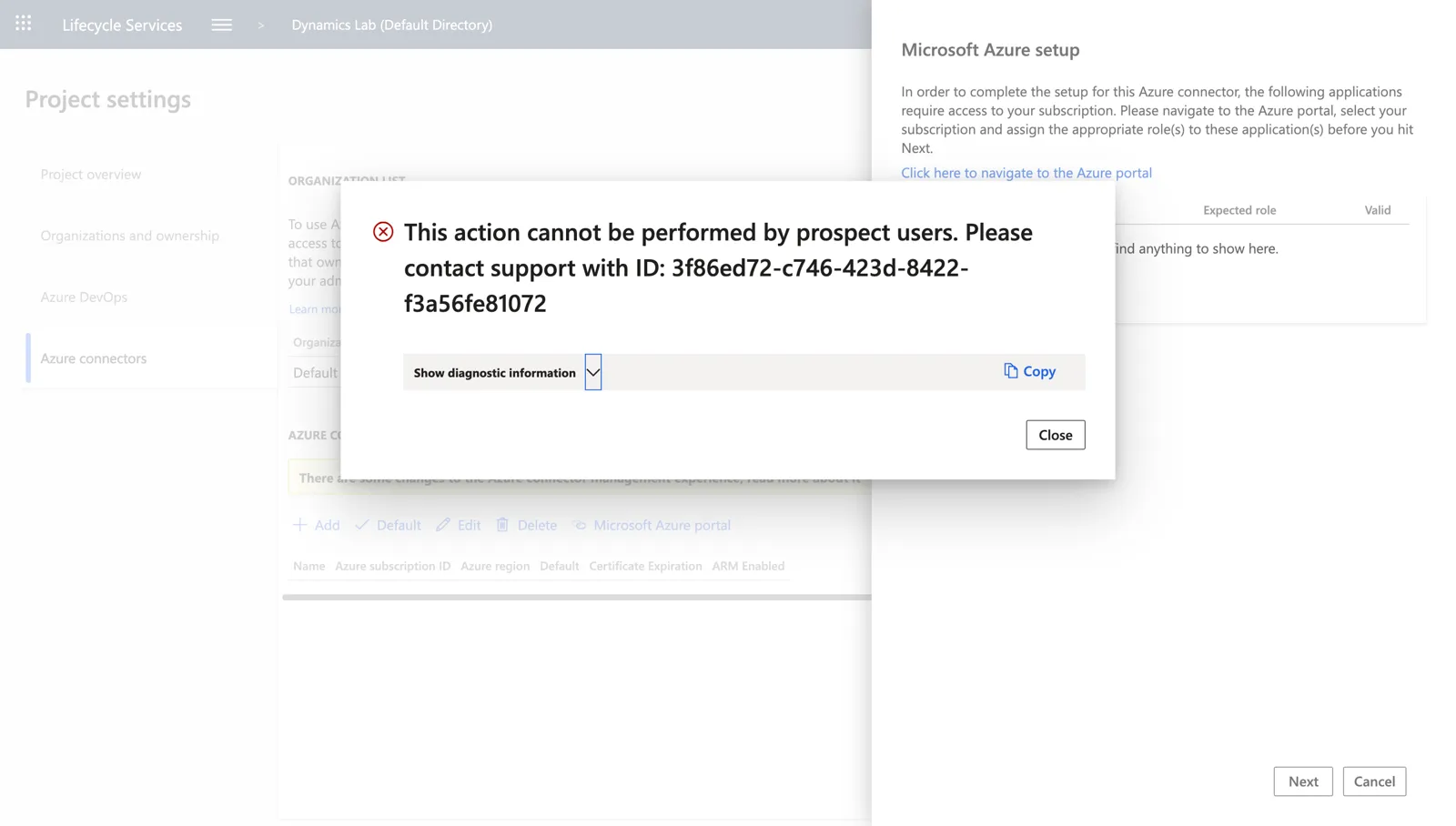
You can create an LCS project with any Entra user, no partner needed (choose the Learn, try and buy methodology). The project even shows the Cloud-hosted environments page. The problem is the Azure connector. On a tenant without an F&O license, LCS classifies your organisation as a prospect and refuses:
This action cannot be performed by prospect users
Without the connector, LCS cannot deploy VMs into your Azure subscription. So the normal cloud-hosted route from my earlier guide is out.
The downloadable VHD
The same LCS project gives you access to the Shared asset library and under Downloadable VHD you will find the current version (10.0.48 when I did this). This is a complete one-box F&O with AOS, SQL Server, Visual Studio, Management Reporter, batch, everything.
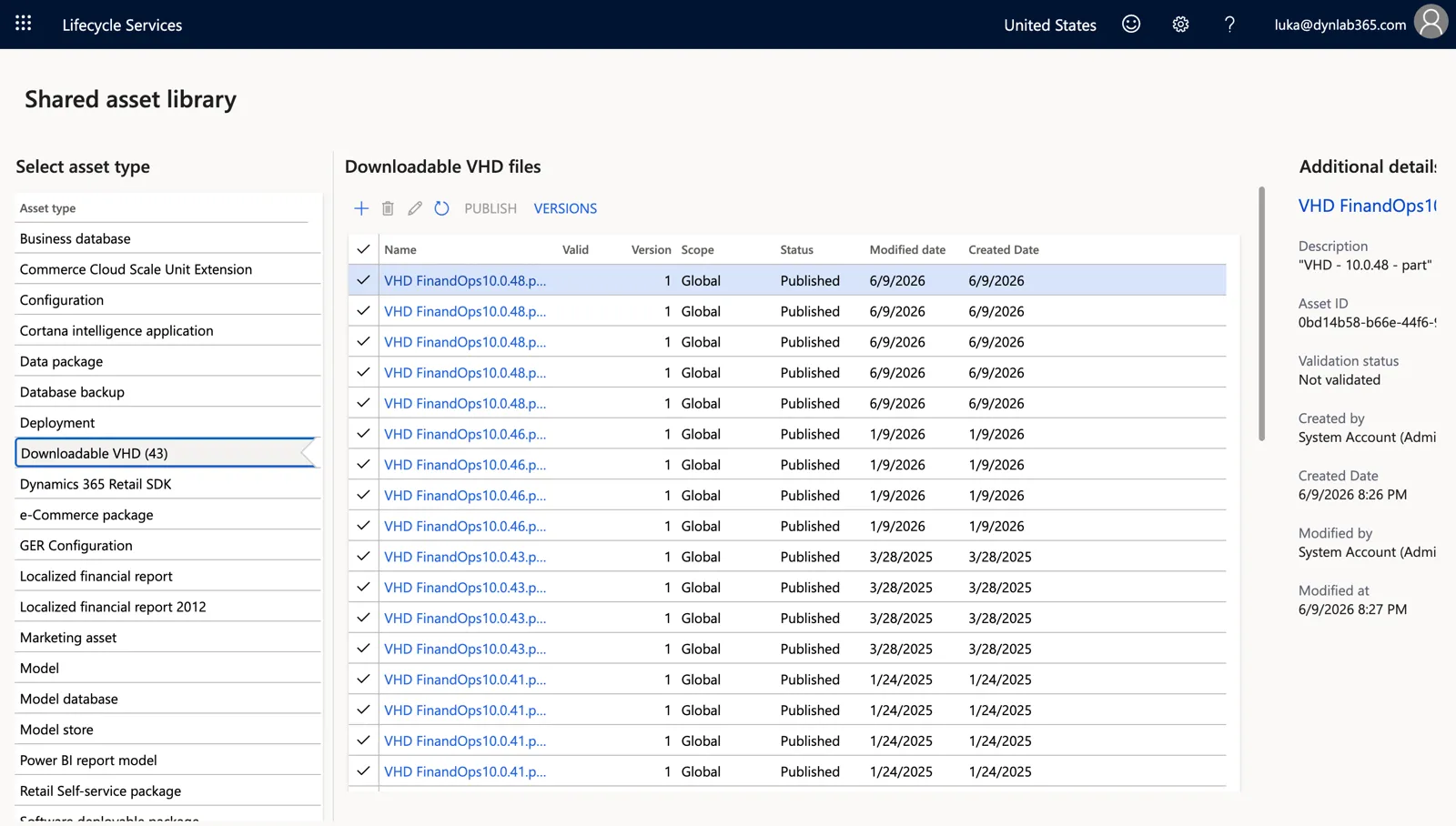
Microsoft’s intended use is local Hyper-V on a Windows machine with 32 GB RAM and a fast SSD. I am on a MacBook with 16 GB, so that was not an option. But the VHD is just a disk image and Azure boots disk images. Upload it once, attach it to a VM of the right size and pay only for the hours it actually runs. That is the route the rest of this post covers.
What actually worked
Two things to be clear about before the commands. First, this is the classic one-box (Tier-1) VM, not the newer unified developer environment that Microsoft is moving towards. UDE is Dataverse-based and needs a Sandbox environment, which brings us back to the license problem. Second, the VHD comes with Microsoft’s software license terms, which you accept when you extract it. It is meant for development and test use only. Read the terms, keep it for that and never put customer data on it.
What you need
- A personal Microsoft Entra tenant. The easiest way is to sign up for an Azure free account with a personal Microsoft account. That creates a tenant called Default Directory, a subscription with $200 credit for 30 days and pay-as-you-go afterwards. Optionally verify your own domain in Entra so your F&O admin is
you@yourdomain.cominstead ofyou@something.onmicrosoft.com. - A user in that tenant with Global Administrator role. This will be the F&O admin account.
- An LCS project created with that user (Learn, try and buy methodology, F&O product).
- Azure CLI on your machine (
brew install azure-clion Mac, or the MSI on Windows). Everything below is CLI, because the portal is slow for this and I wanted the commands to be reproducible. A new tenant has security defaults on, which means MFA, so sign in withaz login --use-device-codeand finish the prompt in the browser.
Sizing and cost
Microsoft’s recommendation for the one-box is 4 cores, 32 GB RAM and Premium SSD. The Azure free trial has a quota of 4 vCPUs per region, so the VM size that fits is Standard_E4ds_v5 (4 vCPU, 32 GB). It is not available in every region on a trial subscription. West Europe refused it, Sweden Central accepted it.
I used Standard SSD for the OS disk instead of Premium. Compile and DB sync are slower, but for a hobby box the difference in price matters more than the difference in speed:
| Item | Approximate cost (Sweden Central, pay-as-you-go) |
|---|---|
| VM running (E4ds_v5, billed as Windows) | $0.49 ≈ €0.45 per hour |
| 150 GB Standard SSD (E15 tier) | $19 ≈ €17 per month |
| Standard public IP (billed even when the VM is off) | $3.65 ≈ €3 per month |
| VM deallocated | €0 per hour |
One thing to know before the first invoice arrives. Because the disk is attached with --os-type windows, Azure bills the VM at the Windows rate, which includes a Windows Server license surcharge on top of the compute price. The same size at the Linux rate would be $0.30 an hour. There is no way around that for a Windows image without your own license, so budget for the Windows price.
And there is a bonus for the first month. The Azure free account comes with $200 of credit for 30 days. The worker VM, the upload, the disk and a few weeks of evenings on the F&O box all fit inside that credit, so the whole setup in this post cost me nothing until the credit expired. Two catches. You must upgrade the subscription to pay-as-you-go within the 30 days, or as soon as the credit runs out, otherwise Azure disables the subscription and the VM and disk go with it. And on the free trial you cannot use Spot pricing (more on that below), so the cheapest way to run this box only opens up after the upgrade.
The trick is simple. Deallocate the VM whenever you are not using it. More on that at the end.
Step 1. Download and extract the VHD
The VHD in the Shared asset library is a self-extracting archive of one .exe plus four .rar volumes, around 34 GB in total. Extracted, it is a single fixed-size VHD of 150 GB.
Do not download it to your laptop unless you have a Windows machine with 200 GB free and a fast upload. Instead, create a small temporary worker VM in Azure (Standard_B2s_v2, Windows Server, with a 1 TB Standard HDD data disk) and download the files there at datacentre speed:
az group create -n rg-fo -l swedencentral

az vm create -g rg-fo -n vm-worker --image Win2022Datacenter \
  --size Standard_B2s_v2 --admin-username worker --admin-password '<strong password>' \
  --data-disk-sizes-gb 1024 --storage-sku os=StandardSSD_LRS 0=Standard_LRS \
  --os-disk-delete-option Delete --data-disk-delete-option Delete \
  --public-ip-sku Standard --nsg-rule NONE

az network nsg rule create -g rg-fo --nsg-name vm-workerNSG -n allow-rdp-me \
  --priority 1000 --access Allow --direction Inbound --protocol Tcp \
  --destination-port-ranges 3389 --source-address-prefixes <your public IP>
Two details in that command matter. --nsg-rule NONE plus an explicit rule means RDP is never open to the whole internet, not even for a minute. And the two delete-option flags make Azure remove the worker’s disks together with the VM. Without them az vm delete leaves the 1 TB disk behind at $41 a month, which is an easy thing to discover three invoices later.
RDP in, initialise the data disk as F: and download the five files. The links in LCS are Azure Blob SAS URLs. Right-click the file name in the Shared asset library, copy the link and use it directly:
Invoke-WebRequest -Uri "<SAS URL>" -OutFile "F:\vhd\VHD-10.0.48.part01.exe"Repeat for the four .rar parts. Then double-click the .exe and extract to F:\vhd\. You get FinandOps10.0.48.vhd (or similar), exactly 161,061,274,112 bytes.
If you script the download and cannot use the GUI, 7-Zip refuses the
.exevolume with amissing volumeerror. The fix is to strip the SFX stub. The RAR signature starts at byte offset 321024 in the.exe, so copying everything from that offset intopart01.rarmakes 7-Zip happy.
Step 2. Upload the VHD as a managed disk
Instead of going through a storage account, upload straight into an empty managed disk. The size must match the VHD byte for byte and the VHD is a Gen1 image:
az disk create -g rg-fo -n disk-fo-os \
  --for-upload --upload-size-bytes 161061274112 \
  --sku StandardSSD_LRS --os-type Windows --hyper-v-generation V1

az disk grant-access -g rg-fo -n disk-fo-os \
  --access-level Write --duration-in-seconds 86400 --query accessSAS -o tsv
Take the SAS URL from the output and run azcopy on the worker VM (download it from Microsoft, it is a single exe):
.\azcopy.exe copy "F:\vhd\FinandOps10.0.48.vhd" "<disk SAS URL>" --blob-type PageBlobInside Azure this takes 20 to 30 minutes. When it finishes:
az disk revoke-access -g rg-fo -n disk-fo-osStep 3. Create the F&O VM from the disk
One caveat on the free trial. Deallocated VMs still count against the vCPU quota. Delete the worker VM before creating the F&O VM, otherwise the 4-core request is refused. If you created the worker without the delete-option flags, check az disk list -g rg-fo -o table afterwards and delete what is left.
az vm delete -g rg-fo -n vm-worker --yes

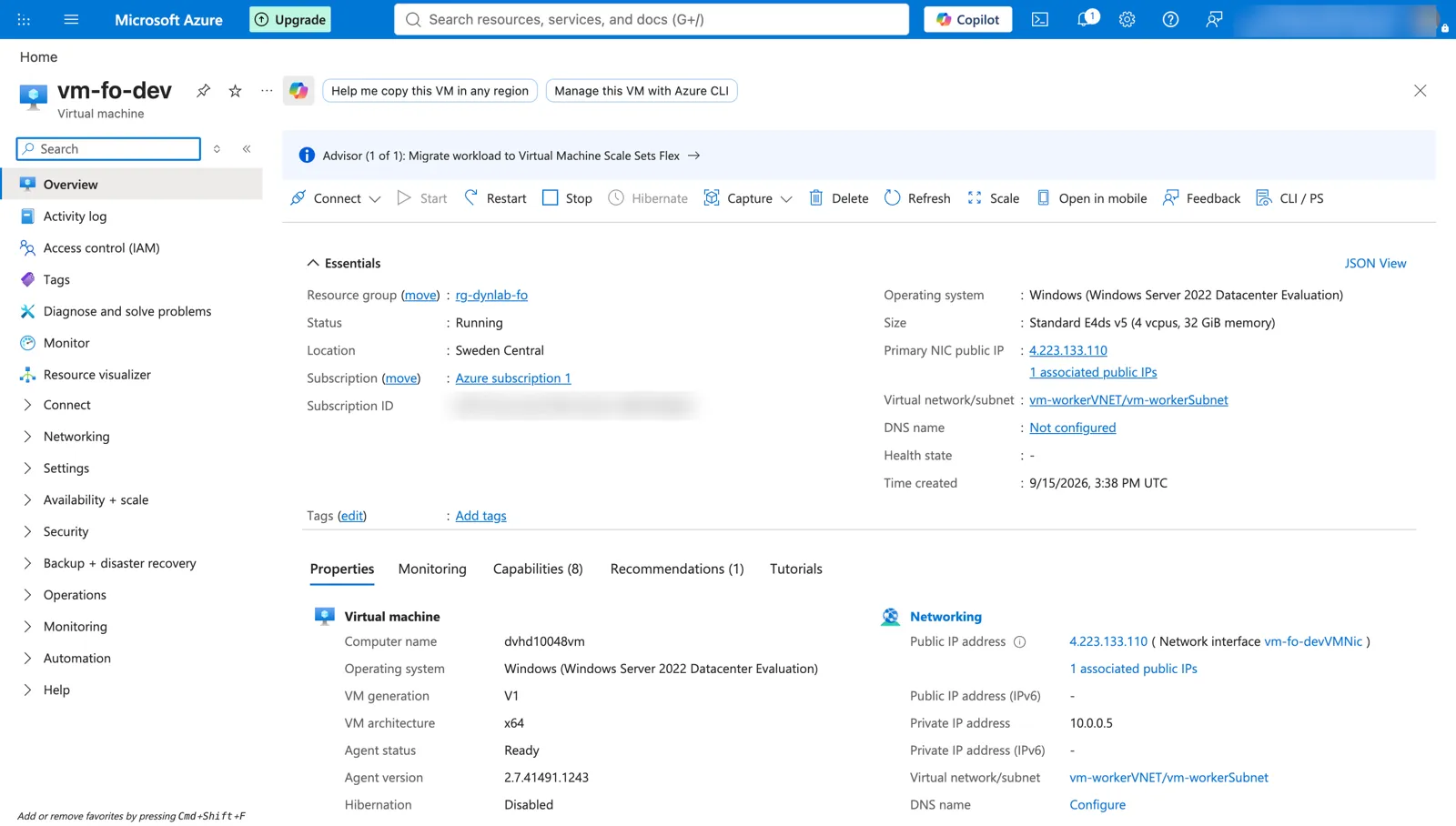
az vm create -g rg-fo -n vm-fo-dev \
  --attach-os-disk disk-fo-os --os-type windows \
  --size Standard_E4ds_v5 \
  --public-ip-sku Standard --nsg-rule NONE

az network nsg rule create -g rg-fo --nsg-name vm-fo-devNSG -n allow-rdp-me \
  --priority 1000 --access Allow --direction Inbound --protocol Tcp \
  --destination-port-ranges 3389 --source-address-prefixes <your public IP>
The VHD ships with a well-known local account (localadmin / pass@word1, it is in Microsoft’s documentation). This VM has a public IP, so change that password before the first RDP session. The VMAccess extension does it from the outside, without logging in:
az vm user update -g rg-fo -n vm-fo-dev -u localadmin -p '<strong password>'Now RDP to the public IP with localadmin.
Step 4. First-run script inside the VM
A freshly downloaded VHD is not usable until you run Microsoft’s preparation script. On the desktop it is the shortcut Generate Self-Signed Certificates (run as administrator) and the script behind it is:
C:\DynamicsTools\CleanVHD\Build-Vhd.ps1It asks one question, the Entra Application (client) ID. This app is what the AOS uses to sign users in, so create it first:
- In the Entra admin center, App registrations, New registration. Single tenant.
- Platform Web, redirect URIs
https://usnconeboxax1aos.cloud.onebox.dynamics.com/andhttps://usnconeboxax1aos.cloud.onebox.dynamics.com/oauth/. - Under Authentication, enable ID tokens (Microsoft’s doc does not mention it, but the AOS login failed for me without it).
- Under API permissions, make sure Microsoft Graph, User.Read is present and click Grant admin consent.
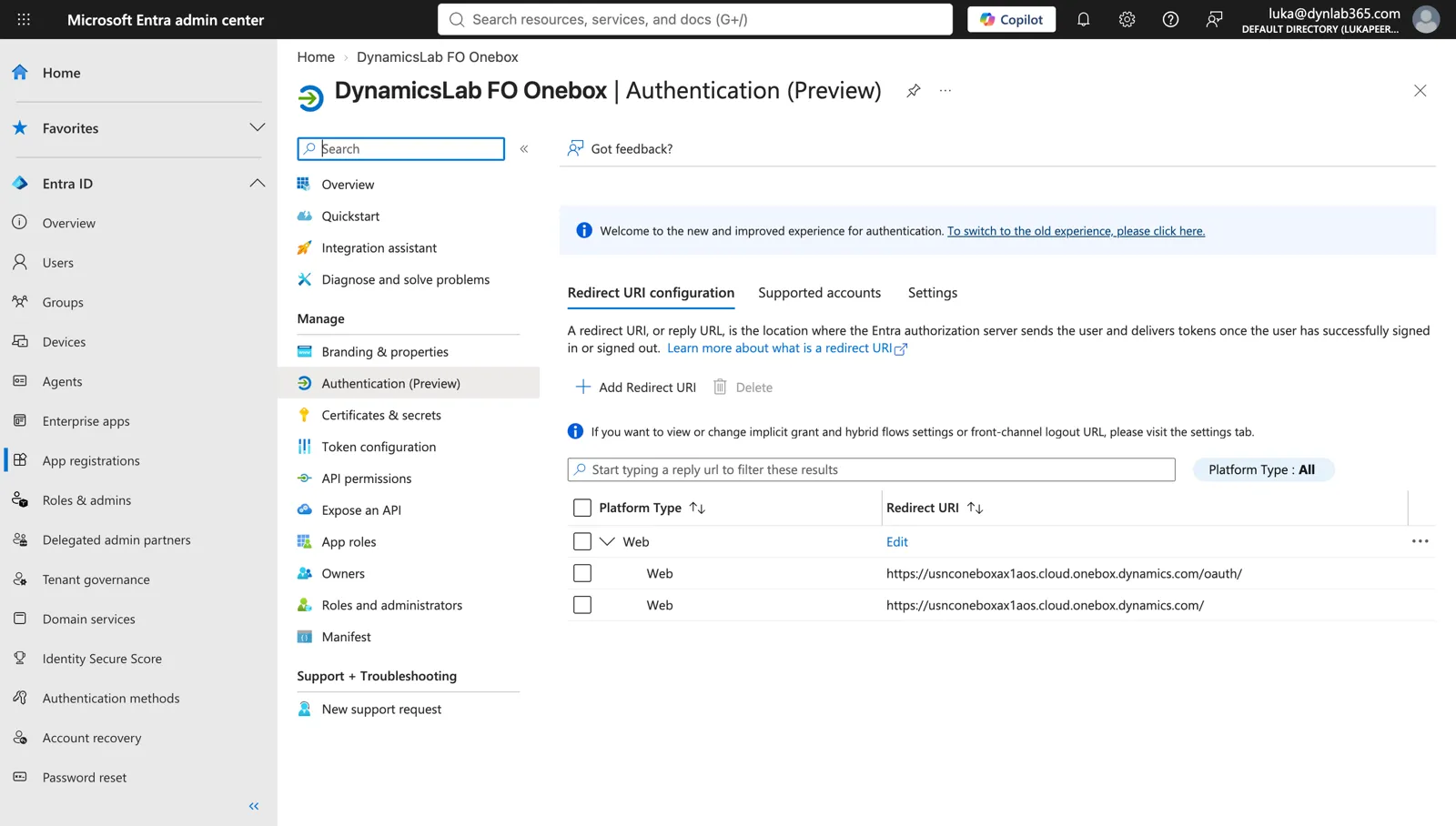
Paste the application ID into the script. It generates new certificates, resets the SQL passwords, updates the AOS web.config and does an iisreset. It took about four minutes on my VM.
Step 5. Make yourself the admin
The VHD ships with a placeholder admin. Microsoft’s tool for this is the GUI AdminUserProvisioning.exe in C:\AOSService\PackagesLocalDirectory\bin. The same thing from PowerShell, using the excellent d365fo.tools:
Install-Module d365fo.tools -Scope CurrentUser -Force
Set-D365Admin -AdminSignInName "you@yourdomain.com"
iisreset
Step 6. Log in
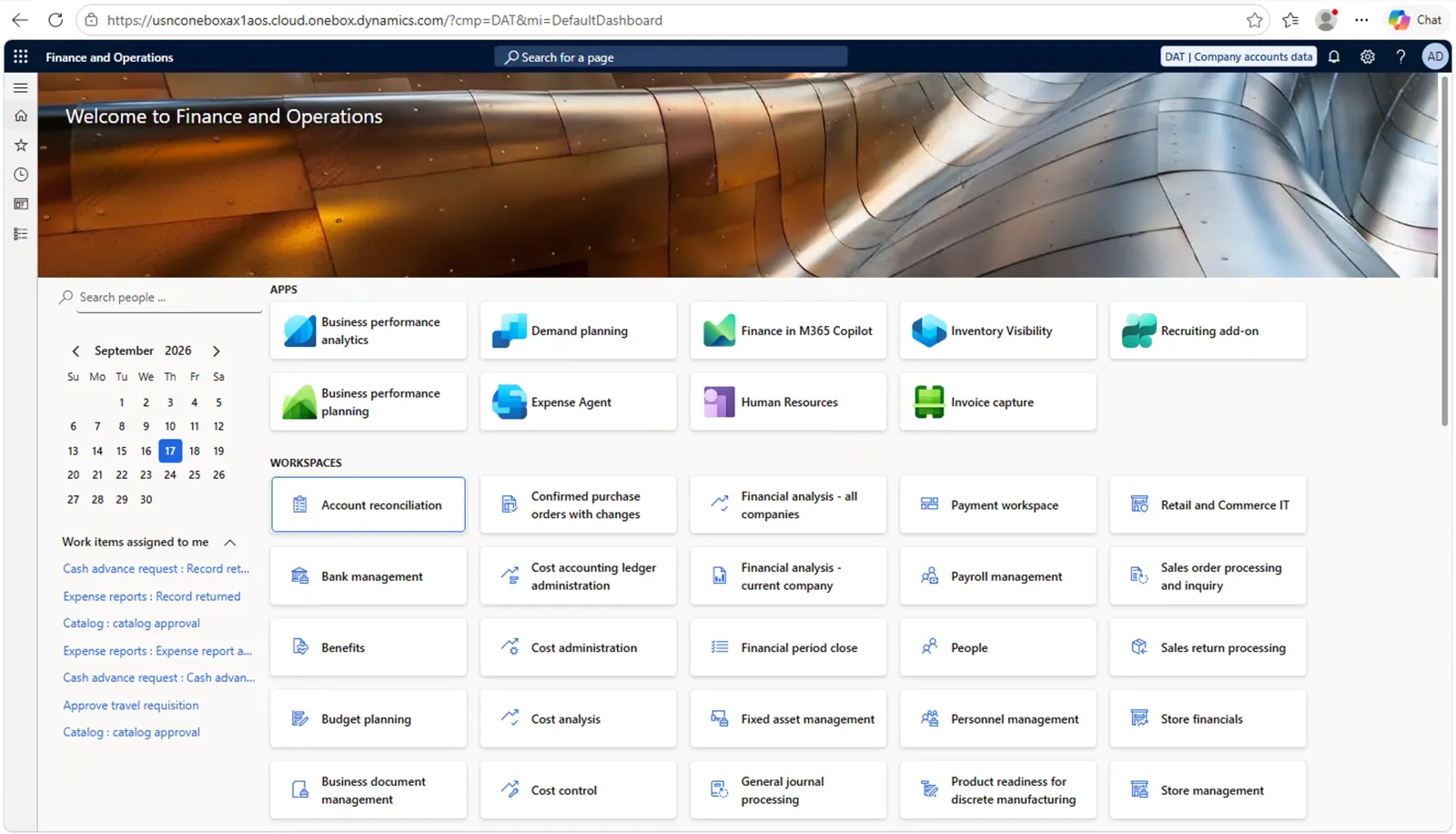
Inside the VM, open https://usnconeboxax1aos.cloud.onebox.dynamics.com. It only resolves inside the VM, through an entry in the hosts file, so do not try it from your laptop. You are redirected to login.windows.net for your tenant. Sign in with the admin user from step 5 and you land in F&O 10.0.48, company DAT, with Visual Studio and SQL Server Management Studio ready on the same machine.
One last thing while everything is clean. Take a snapshot of the disk. It costs a few euros a month and saves you the whole download and upload if you ever break the box.
az vm deallocate -g rg-fo -n vm-fo-dev
az snapshot create -g rg-fo -n snap-fo-clean --source disk-fo-os --sku Standard_LRS
Troubleshooting
AADSTS650056 Misconfigured application on login. The app registration exists but has no service principal or no consented permission. This happens if you created the app with the CLI instead of the portal. Fix:
az ad sp create --id <application id>
az ad app permission add --id <application id> \
  --api 00000003-0000-0000-c000-000000000000 \
  --api-permissions e1fe6dd8-ba31-4d61-89e7-88639da4683d=Scope
az ad app permission admin-consent --id <application id>
The requested size is not available for this subscription (NotAvailableForSubscription). Trial subscriptions do not get every size in every region. Try another region. az vm list-skus -l <region> --size Standard_E4ds_v5 shows the restrictions.
Quota exceeded when creating the F&O VM. Delete, do not just deallocate, any other VM in the region.
Windows Server evaluation expiring. The VHD runs on an evaluation license. When it starts complaining, slmgr /rearm and a reboot buys another 180 days and you can do that up to six times.
Visual Studio asks for a license. Visual Studio on the VHD is a trial. A Visual Studio license is not part of any Dynamics 365 license, so once the trial ends you need your own, either a Visual Studio subscription or, for individual non-commercial use, the free Community edition. Microsoft does not support reinstalling Visual Studio on the VHD, so if you go the Community route, install it side by side and add the Dynamics 365 Finance and Operations Tools extension from the marketplace.
RDP suddenly stops working. Your home public IP changed and the NSG rule still has the old one. Update the rule:
az network nsg rule update -g rg-fo --nsg-name vm-fo-devNSG -n allow-rdp-me \
  --source-address-prefixes <your new public IP>
Shutting down properly
This is the part that decides whether the box costs €0.45 an hour or €0 an hour. Shutting down from inside Windows does not stop billing because Azure still reserves the hardware. Always stop from Azure:
az vm deallocate -g rg-fo -n vm-fo-dev
az vm start -g rg-fo -n vm-fo-dev
With a Standard public IP the address stays the same after every restart, so your RDP shortcut keeps working. A quick az vm get-instance-view should say VM deallocated before you close the laptop.
And because you will forget at least once, set an auto-shutdown schedule. Azure deallocates the VM at that time every day, whether you remembered or not. The time is UTC, so 2200 is midnight in Central Europe in summer:
az vm auto-shutdown -g rg-fo -n vm-fo-dev --time 2200 --email you@yourdomain.comThen put a fence around the whole thing. In the portal, under Cost Management > Budgets, create a monthly budget for the subscription (€40 is a sensible number for this setup) with an email alert at 80 percent. It costs nothing and it is the only thing that will tell you when something is quietly running.
If you would rather not have a public IP at all, Azure Bastion has a free Developer SKU that gives you RDP through the portal without exposing port 3389, but it is only available in some regions, so check yours first.
Going cheaper with Spot
Once the subscription is on pay-as-you-go, the same VM can run as an Azure Spot VM. Azure sells its spare capacity at a steep discount and may evict the VM with 30 seconds’ notice when it needs the capacity back. For a production system that is unacceptable. For a dev box that you deallocate every evening anyway it is a bargain. E4ds_v5 Windows Spot in Sweden Central was $0.09 an hour at the time of writing, against $0.49 for the regular price.
The flag is set at creation time only, so you create the VM from the same disk with three extra parameters. With --eviction-policy Deallocate an eviction behaves like a deallocation. The disk stays and you start the VM again later.
az vm create -g rg-fo -n vm-fo-dev \
  --attach-os-disk disk-fo-os --os-type windows \
  --size Standard_E4ds_v5 \
  --priority Spot --eviction-policy Deallocate --max-price -1 \
  --public-ip-sku Standard --nsg-rule NONE
--max-price -1 means never evict for price, only for capacity, and you never pay more than the regular rate. Save your work in Visual Studio often and check in to source control before you close the laptop. That is the whole price of the discount.
Final thoughts
It is a few hours of work the first time, but the result is a complete F&O development box that belongs to you, costs nothing while it sleeps and about the price of a coffee for a full afternoon of work. With the $200 free credit, the first month is free. For blog experiments, certification prep, or testing an upgrade before a customer does, it is hard to beat.
Have you found a cheaper or simpler way? Let me know in the comments or through the contact page.
Links
- https://learn.microsoft.com/en-us/dynamics365/fin-ops-core/dev-itpro/dev-tools/access-instances
- https://learn.microsoft.com/en-us/dynamics365/fin-ops-core/dev-itpro/dev-tools/vhd-setup
- https://learn.microsoft.com/en-us/power-platform/developer/unified-experience/finance-operations-dev-overview
- https://lcs.dynamics.com/V2/SharedAssetLibrary
- https://azure.microsoft.com/free/
- https://learn.microsoft.com/en-us/azure/virtual-machines/linux/disks-upload-vhd-to-managed-disk-cli
- https://learn.microsoft.com/en-us/azure/virtual-machines/spot-vms
- https://azure.microsoft.com/en-us/pricing/details/virtual-machines/windows/
- https://github.com/d365collaborative/d365fo.tools